


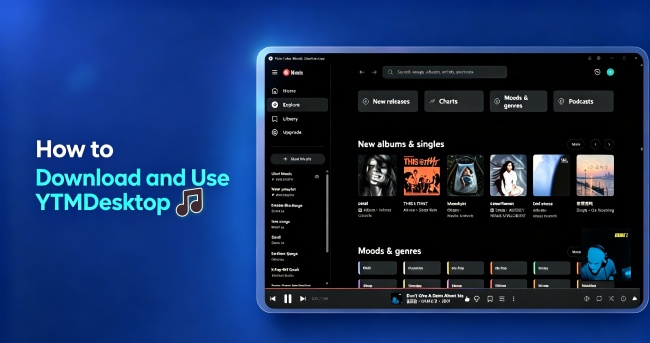
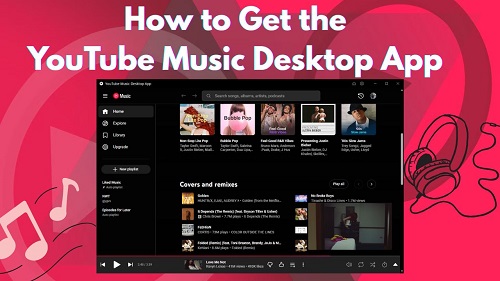
If you want a more convenient way to use YouTube Music on your computer, YTMDesktop turns the web player into a dedicated desktop app. It supports Windows, macOS, and Linux and adds features such as media-key controls, custom shortcuts, system tray support, and third-party integrations. In this guide, we'll show you how to download and install YTMDesktop and how to use its main features. We'll also cover an alternative for saving YouTube Music tracks as local audio files. Let's dive in.
Part 1. What Is YTMDesktop?
YTMDesktop (YouTube Music Desktop) is a free, open-source desktop client that transforms the YouTube Music web experience into a dedicated application for Windows, macOS, and Linux. Originally created by Adler Luiz, a full-stack developer, YTMDesktop is now maintained by an open-source community of contributors worldwide. The project operates independently from Google and YouTube, allowing developers to improve the app based on user feedback and community needs.
Designed for daily listeners, power users, and anyone who wants a smoother desktop music experience, YTMDesktop focuses on making YouTube Music feel like a native desktop application. It improves convenience, adds missing desktop features, and integrates music playback more naturally into your workflow.
- Native Desktop Controls: Control playback using global media keys, custom keyboard shortcuts, desktop notifications, and system tray controls without opening the app window.
- Lightweight Performance: Runs YouTube Music in its own dedicated environment, helping reduce the resource usage compared with keeping a browser tab open for long periods.
- Social & Tracking Integrations: Supports Discord Rich Presence to show your current track status and Last.fm scrobbling to record your listening history.
- Hardware & Remote-Control Support: Works with external tools and devices through API integrations, including Stream Deck, Loupedeck, and mobile remote-control apps.
- Enhanced Listening Experience: Includes features such as improved volume control, customizable themes, inline lyrics, and sleep timers to make playback more convenient.
- Cross-platform Support: YTMDesktop works on Windows, macOS, and Linux.
However, YTMDesktop is a third-party app. It mainly works as a desktop wrapper for YouTube Music, so features and compatibility may change depending on updates from YouTube. If you want to use YouTube Music offline, you can consider ViWizard YouTube Music Converter.
Part 2. How to Download and Install YTMDesktop on Windows, Mac, and Linux
YTMDesktop supports Windows, macOS, and Linux, allowing you to use YouTube Music as a dedicated desktop application. The installation steps vary by operating system because each platform uses different installer formats and system integrations, such as Windows taskbar controls or Linux package managers. However, the app interface remains consistent across platforms since YTMDesktop is built with Electron. Follow the steps below to install YTMDesktop on your device.
Install YTMDesktop on Windows
To install YTMDesktop on Windows, download the official installer from the YTMDesktop website or install it using Windows Package Manager (winget). Both methods are simple and allow you to set up the app in just a few steps.
Using the Official Installer
01Visit the official YTMDesktop website.
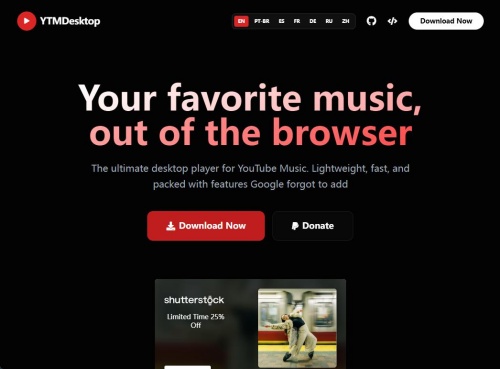
02Download the Windows x64 EXE installer.
03Open the downloaded setup file.
04Follow the installation instructions.
05Complete the setup and launch YTMDesktop from the Start menu or desktop shortcut.
Using Winget
01Open Command Prompt or PowerShell from the Start menu.
02Enter the following command:

03Press Enter and wait for Windows to download and install YTMDesktop automatically.
04Open the app and sign in with your YouTube Music account.
Install YTMDesktop on Mac
To install YTMDesktop on Mac, download the macOS installer from the official YTMDesktop website, move the app to your Applications folder, and launch it. Since YTMDesktop is a third-party desktop wrapper, macOS may require additional permissions before opening the app.
01Visit the official YTMDesktop website and download the macOS installer (.dmg or .zip file).
02Open the downloaded file.
03Drag the YTMDesktop app into the Applications folder.
04Open the Applications folder and launch YTMDesktop.
05If macOS blocks the app because it cannot verify the developer, go to System Settings > Privacy & Security.
06Select Open Anyway to allow the app to run.
After installation, open YTMDesktop and sign in with your YouTube Music account to start using the desktop player.
Install YTMDesktop on Linux
If you want to install YTMDesktop on Linux, the easiest method is using Flatpak, or using native packages if you use Arch Linux.
Using Flatoak
This method is recommended for Ubuntu, Fedora, Linux Mint, Debian.
01Activate your system terminal by pressing Ctrl + Alt + T.
02Ensure Flatpak is installed on your system by running your distribution's install command:
On Ubuntu/Debian:
On Fedora:
03Add the Flathub repository if you haven't already:
04Install the YTMDesktop application from Flathub:
05Sign in to YTMDesktop with your regular account from your app menu or run it via terminal:
Using an AUR Helper
If you use Arch Linux, you can install YTMDesktop through the Arch User Repository (AUR) with an AUR helper such as yay or paru. This allows you to download and install the package directly from the command line.
01Open the terminal.
02Run the installation command:
03Follow the prompts to confirm the installation.
04Complete the setup.
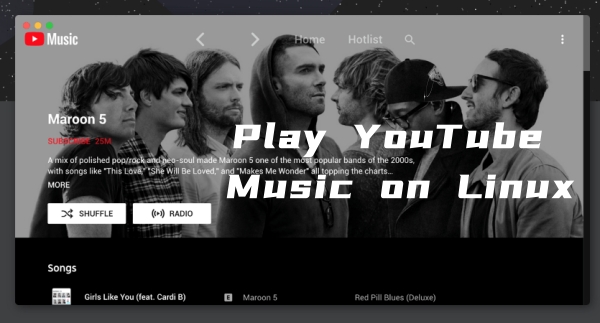
YouTube Music has gained great popularity throughout the world. Many Linux users try to use it. In this guide, we'll explore 4 ways to use YouTube Music on Linux, from rock-solid desktop apps to lightweight terminal players.
Part 3. How to Use YTMDesktop to Play YouTube Music on Desktop
After installing YTMDesktop, you can use it like a regular desktop music player to access your YouTube Music library. The app connects directly with your YouTube Music account, so you can browse songs, play playlists, manage playback, and use desktop features without opening a browser.
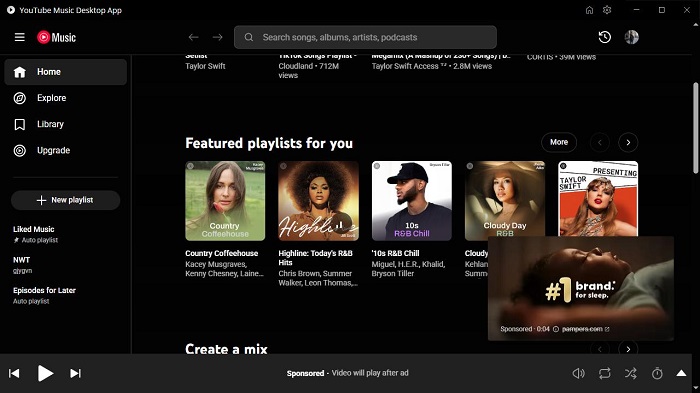
Use YTMDesktop to Play YouTube Music on Desktop
Setp 1Launch YTMDesktop
01Open the YTMDesktop application on your desktop.
02Click Sign In in the top right corner to log in with your regular Google account.
Setp 2Use Playback Controls
01Use your keyboard's media keys to play, pause, skip, or return to the previous track.
02Adjust the volume with the built-in volume slider.
03Use the quick-access buttons to like tracks or add them to your library.
Setp 3Customize Settings and Shortcuts
01Click the Settings gear icon in the upper-right corner.
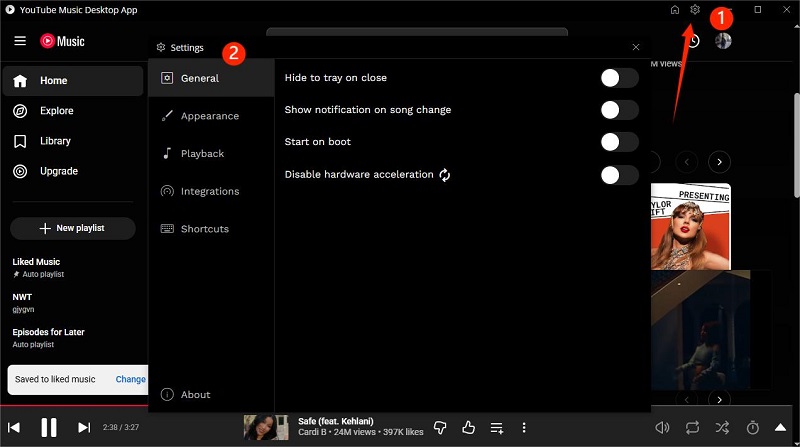
02Open Custom Shortcuts to assign keyboard shortcuts to playback actions.
03Enable options such as Start on Boot, Hide to Tray, or Sleep Timer under the general settings.
Setp 4Use Advanced Features
01Enable the Companion Server under Settings > Integrations to connect compatible external devices or Stream Decks.
02Turn on Discord RPC to show your current YouTube Music playback on your Discord profile.
Part 4. Best YTMDesktop Alternative for Offline YouTube Music Playback
YTMDesktop is useful for playing YouTube Music on a desktop, but it does not offer a built-in option to download songs for offline listening. If you want to keep your favorite tracks locally and play them without an internet connection, a dedicated music downloader is a practical option. Here we recommend ViWizard YouTube Music Converter.
ViWizard YouTube Music Converter
ViWizard YouTube Music Converter supports Mac and Windows. It downloads music from YouTube Music and saves it in common audio formats, including MP3, FLAC, WAV, and more. Best of all, it preserves song information such as titles, artists, albums, and cover art, so you can easily organize your music library. To use it, add the YouTube Music songs, select an output format, and start the download. Once done, you can transfer them to your phone, USB drive, or other compatible devices for offline playback.
If your main goal is streaming YouTube Music on a desktop, YTMDesktop is a convenient choice. If you need local copies for offline playback, ViWizard YouTube Music Converter offers a more suitable solution.

Need YouTube Music for offline listening? ViWizard YouTube Music Converter helps YouTube Music users save songs, playlists, albums, and artists with convenient music conversion. Start converting and enjoy your music beyond the app.
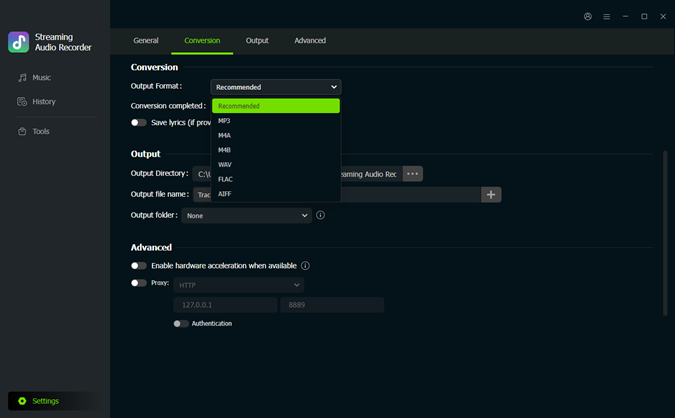 Step 1: Set the Output Format
Open ViWizard YouTube Music Converter and click Settings in the bottom-left corner. Under Conversion, choose an output format such as MP3, FLAC, WAV, AIFF, M4A, or M4B. You can also adjust the audio quality and output folder. Then return to the main Music section.
 Step 2: Open YouTube Music
Click the YouTube Music icon in ViWizard to open its built-in player. Sign in to your YouTube Music account, then search for the songs, albums, playlists, or artists you want to save.
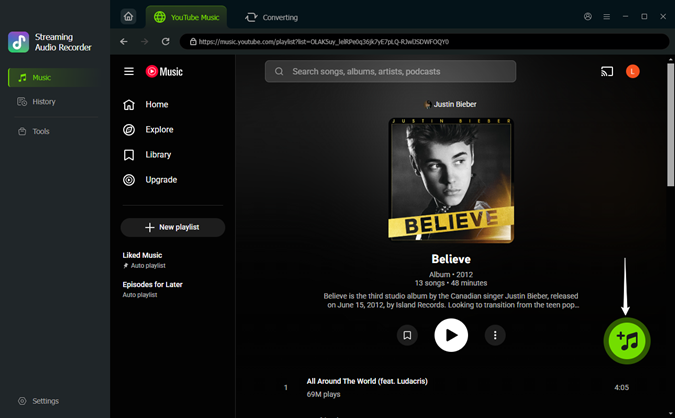 Step 3: Add Music to the List
Open the song, album, or playlist you want to download and click the + button. ViWizard will load the available tracks. Select the songs you need and add them to the conversion list.
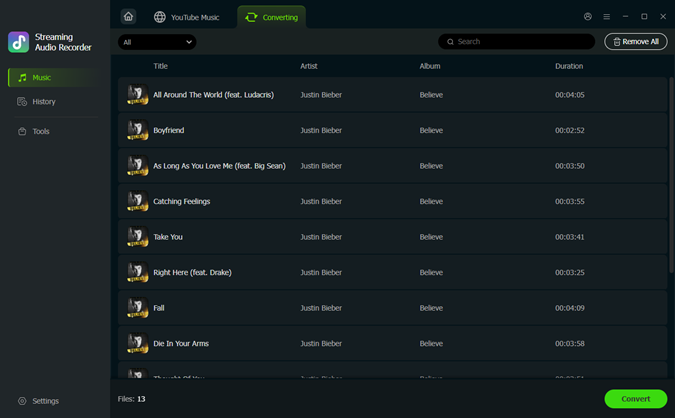 Step 4: Convert YouTube Music for Offline Playback
Open the conversion list and review your selected tracks. Click Convert to start processing. Once finished, go to History to find the converted audio files. You can play them directly or open the output folder to transfer them to your preferred device for offline listening.
Part 5. YTMDesktop vs YouTube Music Web vs ViWizard
YTMDesktop, YouTube Music Web, and ViWizard YouTube Music Converter serve different purposes. YTMDesktop provides a dedicated desktop interface, YouTube Music Web offers quick browser-based access, while ViWizard focuses on saving YouTube Music content as audio files for offline playback. Here is the comparison table for your reference.
| Feature | YTMDesktop | YouTube Music Web | ViWizard YouTube Music Converter |
|---|---|---|---|
| Installation required | ✅ | ❌ | ✅ |
| Keyboard media controls | ✅ | Limited | — |
| Background Playback | ✅ | ✅ | ✅ |
| Custom shortcuts | ✅ | ❌ | — |
| Offline playback | ❌ | ❌ | ✅ |
| Discord Rich Presence | ✅ | ❌ | ❌ |
| Save as common audio formats | ❌ | ❌ | ✅ |
In short, YTMDesktop is best for desktop playback, YouTube Music Web is best for convenience, and ViWizard YouTube Music Converter is best when offline audio files are your priority.
Part 6. FAQs about YTMDesktop
Is YTMDesktop safe to use?
YTMDesktop is an unofficial third-party client rather than an official Google application. Download it from its official website or GitHub repository to reduce the risk of getting a modified or unsafe version.
Can YTMDesktop download YouTube Music songs?
No. YTMDesktop is mainly designed for streaming and desktop playback. It does not provide a built-in feature for downloading YouTube Music tracks as local audio files. If you need offline audio files, you can use ViWizard YouTube Music Converter to save YouTube Music tracks in common formats such as MP3, FLAC, WAV, AIFF, M4A, and M4B.
Can I use YTMDesktop without a YouTube Music Premium account?
YTMDesktop connects to YouTube Music, so the features available to you generally depend on your YouTube Music account and subscription. YTMDesktop itself does not provide a way to bypass YouTube Music's subscription restrictions.
Conclusion
If you want a convenient desktop interface for YouTube Music, you can install YTMDesktop. It features playback controls, system integration, and additional functions that go beyond the standard web player. However, if you want offline audio files, it is not the best choice. ViWizard YouTube Converter can save YouTube Music tracks as MP3, FLAC, AIFF, and more while preserving metadata for you. Each method has pros and cons. Choose your preferred player and start your music journey now!
You May Be Interested



From new releases to old favorites, Matt Smith is always on the lookout for good music. He follows the latest in digital entertainment and shares songs and media he thinks are worth checking out.

Leave a Comment (0)