


As one of the world's largest audiobook platforms, Audible offers content in over 50 languages. Its app interface supports key regional languages such as English, German, French, Italian, Spanish, Japanese, and Portuguese. Additionally, your language and region settings significantly influence the search results you see on Audible.
Many Audible users have reported frustrating language-related issues. For instance, sometimes the language setting may reset or display incorrectly due to a network glitch or system bug. You may also fail to find some audiobooks due to the language setting. In this article, a full guide will be provided about how to change Audible language on all devices.
Part 1. Can You Change the Language on Audible?
The short answer is yes, absolutely. You can change the language on Audible for a variety of purposes. If you simply want to browse the library in a different language, you can change the language of the Audible app or website. To access more audiobooks in a foreign language, you can switch your Audible marketplace, which also helps when the language setting goes wrong. What's more, since Audible supports multiple languages for many titles, you can easily find audiobooks in another language as well.
The steps are also quite straightforward. All of these changes can be made quickly within the Audible platform, whether you're using a phone or a desktop.

Part 2. How to Change the Audible Language
Audible fully supports changing your language preference directly within the app settings. Whether you're on Android, iPhone, Windows, or Mac, you can switch the interface language in just a few easy steps. The change will also update quickly. For example, if you change your Audible language from English to German, all buttons, tabs, and on-screen messages will instantly appear in German.
Change the Audible App Language (Android & iPhone)
With 11 Audible marketplaces available, Audible supports 11 interface languages on both Android and iPhone. It also supports Chinese, particularly on Android. To change your language settings, follow the steps below.
01Open the Audible App on your phone. Just open Audible in the way you are most used to.
02Click the Profile button at the bottom-right corner of your screen.
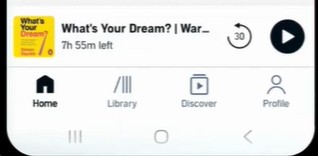
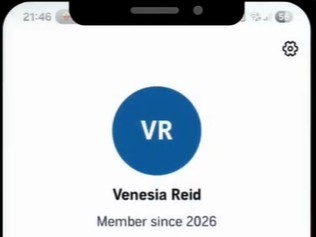
03You can see a small gear icon at the top-right corner of the profile page. Just tap the gear icon to navigate to app settings.
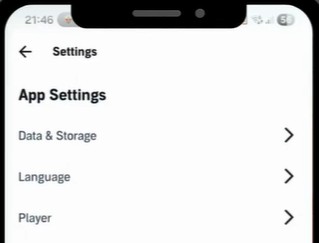
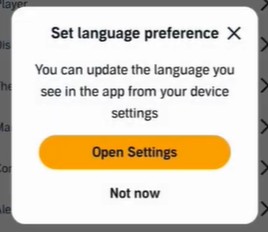
04In the App Settings section, tap the Language button. Then, you will see a pop-up window.
05Choose Open Settings to confirm your decision.
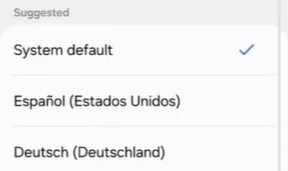
06Choose your preferred language from the language list. You may find there is a check mark next to the System default button. It means the language on Audible is the same as the language on your phone.
07Wait a few seconds for your changes to take effect automatically. You can also close the Audible app and reopen it to apply the update immediately.
Change the Audible Website Language (Windows & Mac)
The language options available on the Audible website depend on the marketplace you're currently using or have selected. You may find only 2 language options on Audible. However, it supports 11 languages on the website. English is available across all Audible domains, while the second option varies by your marketplace. Here's how to switch between the two provided language options.
01Open the Audible website you usually use to browse the Audible library or enjoy audiobooks.
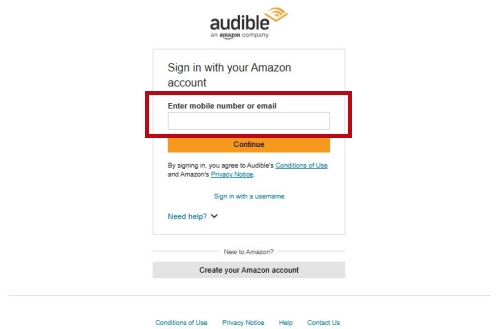
02Sign in to Audible with your Amazon account if you've been logged out.
03In the same place as the Sign in button, you can see the Audible language you're using now. It's above the Audible search bar. Hover your mouse over it, and you'll see a drop-down menu.
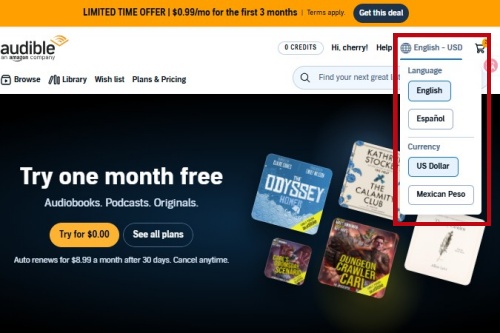
04Change the language choice by clicking one language option.
05Browse Audible in your selected language. The website will refresh automatically after you choose one language.
Part 3. How to Change Your Audible Marketplace
On the Audible website, language options are restricted by your Audible marketplace. Therefore, you may fail to select a suitable language. This usually happens when you travel to other countries or work abroad. Audible fails to detect your location correctly. Also, if you have ever visited another country's Audible domain, you may be redirected there by default, even though your marketplace does not belong to it.
You can absolutely follow the steps below to change your Audible marketplace. As the quickest method, it requires no VPN and no help from Audible support. However, it applies only to the interface. If you want to purchase an audiobook in a language not available in your current marketplace, changing your account's marketplace region makes that possible.
To change the marketplace for your Audible account. You should first follow the steps below to navigate to the right domain. Then, click the Sign in button and create a new account with a real address in the country you select. If you're in that country, the steps will be quite easy. If not, you can generate the address from any online address generator or find a real address on the map. Once you get the new account, don't forget to set your real credit card as the default payment method.
Change Audible Marketplace on the Website
If you can't find your preferred language on the Audible website, then you can try the following ways to solve the issue caused by marketplace differences.
01Go to the Audible website as you usually do to browse Audible.
02Click the Sign in button to log in to your Audible account if it prompts.
03Drag the scrollbar track on the right side to the bottom.
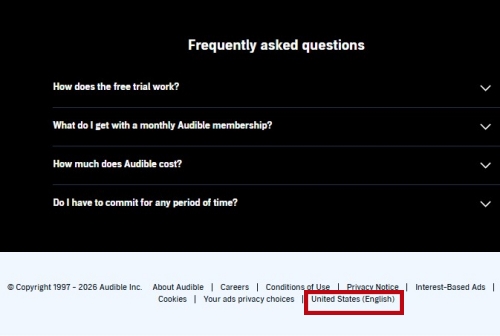
04In the website footer, you can find the country and language setting you're using now. Click it. For Example, click United States (English) if you're in the American marketplace.
05In the Audible country selector page, choose your preferred country. It will then automatically navigate to the Audible website of your selected marketplace.
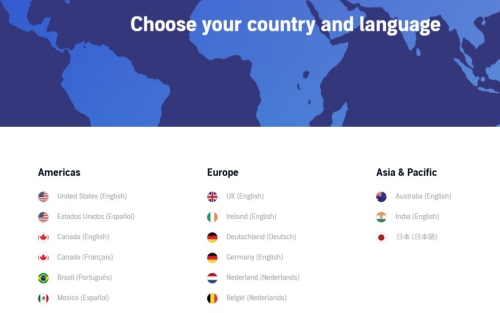
06Now you can browse the Audible library in a new language.
Change Audible Marketplace in the Audible App
If the language goes wrong because you log in to the wrong Audible marketplace, you can quickly change it to the right one with the guide below. Please update your Audible app first to avoid any issues.
01Open Audible on your phone or tablet, whether on Android or iOS.
02On the navigation bar, click the profile icon on the far right.
03Tap the settings icon at the top-right corner of your screen.
04Click the Marketplace button in the App Settings section.
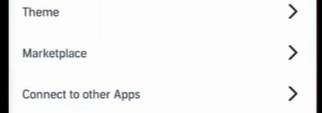
05Now choose a suitable country in the marketplace list.
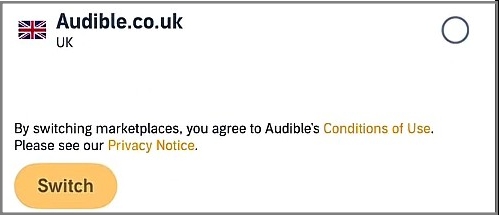
06Tap the Switch button to confirm your choice. The change will update automatically in your Audible app.
Part 4. How to Listen to Audible Audiobooks in Another Language
With all the methods above, you now know how to change the language of your Audible interface and library. But what if you want to listen to an audiobook in a different language? Yes, that's possible too. Sometimes you may purchase an audiobook in the wrong language by mistake. To switch to the correct version, you'll need to return it and buy the right one.
The steps below explain how to return an audiobook and how to find titles in another language. These steps are also useful if you'd like to explore Audible audiobooks in a different language — whether for language learning or just for fun. If that's your goal, you can skip steps 2 through 4 and complete the process directly through the Audible app.
- You must subscribe to the Audible Premium plan.
- The audiobook must be purchased with the Audible credit.
- Only books purchased in the past 365 days are eligible.
- You can only return audiobooks via the Audible website, whether on mobile devices or desktops.
01Open the Audible website via the browser on your desktop or mobile device and log in to your account.
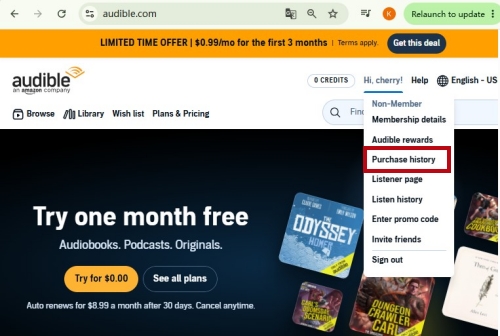
02On the mobile device, tap the three-line icon at the top-left corner first. Then, tap the name of your Audible account. On the desktop, hover over your name.
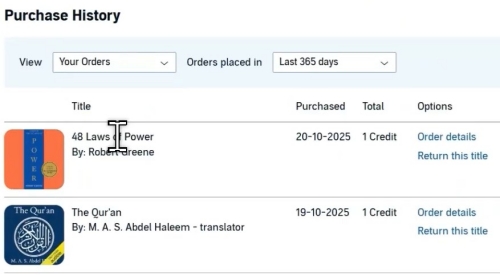
03Click Purchase history. Locate the audiobook you want to change the language for.
04Choose Return this title and confirm your choice. On the mobile device, you should click the audiobook first.
05Search for the Audiobook you want. On desktop, use the search bar below your name. On a mobile browser or the Audible app, click the search icon at the top-right corner.
06Find the audiobook with the right language. On desktop, check the language filter in the left column. On a mobile device, tap the filter icon first and check the language filter.
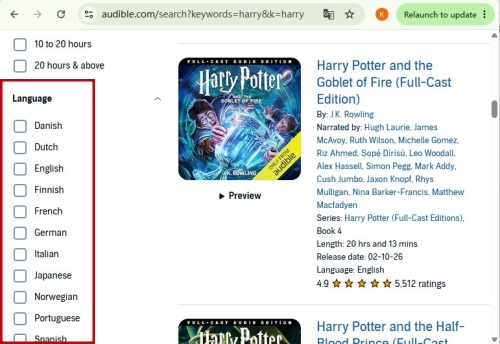
07Click the audiobook and pay for it.
Bonus: How to Keep Audible Audiobooks Forever Without a Subscription
Now you've learned all the methods to change the language on Audible. You can freely browse the Audible library in your preferred language. You can easily get the audiobooks in any available language. Then, can you keep the Audible audiobooks forever even without a subscription?
Yes, you can. ViWizard Audible Converter can help users download audiobooks in multiple formats, including Lossless, MP3, FLAC, WAV, AIFF, M4A, and M4B. Unlike official Audible downloads locked to the platform, these files are completely DRM-free. They can be kept on your desktop forever and remain accessible. Additionally, you can transfer the downloads to any device. Then, you can better keep the files. Besides, you can enjoy them on various devices without internet. Have a try?

Key Features of ViWizard Audible Audiobook Converter
Free Trial Free Trial* Security verified. 5,481,347 people have downloaded it.
- Convert Audible audiobooks without AA/AAX format limitations
- Export audiobooks in 6 formats for different devices and players
- Split audiobooks by chapters or sections for personalized listening
- Preserve chapter information and metadata when creating collections
- Manage Audible audiobook libraries across converted files
 Step 1: Access Your Audible Library
To get the audiobooks, you should first log in to your Audible account. Then, you'll have full access to the Audible library in the built-in Audible web player.
 Step 2: Choose the Download Format
You can choose a suitable download format for your audiobooks in the Preferences section. Click the three-line icon next to the profile icon. Then, click Conversion to change settings.
 Step 3: Open Your Favorite Audiobooks
Click the Library button if you have already added your favorite audiobooks to it. Then, click the music icon to add them to the conversion list in batch. If not, you can search for the content or paste the URL into the address bar. Then, on the audiobook description page, click the music icon to add them one by one.
 Step 4: Convert the Added Audiobooks
In the conversion list, click the Convert button to download your audiobooks in your selected format. In the downloads list, hover your mouse over any title. Click the play icon to enjoy it in the built-in web player. Click the folder icon to locate it on your desktop.
Conclusion:
There are multiple ways to fix Audible language issues on all devices. You can change the app language in your settings, switch the website language from the available options, or update your marketplace across the app, website, or account. It's also convenient to listen to Audible audiobooks in another language with the steps provided. All can be finished in just a few steps. Listening to audiobooks in another language is just as easy.
Moreover, once you find the audiobooks you want, you can use ViWizard Audible Converter to keep them forever. Enjoy these audiobooks whenever and wherever, regardless of the restrictions from Audible.
You May Be Interested


Adam Gorden is always looking for new ways to explore music and videos. He likes trying different media tools and learning how to manage audio and video files with ease.

Leave a Comment (0)