


NoteBurner Spotify Music Converter is a popular tool for downloading and converting Spotify music. But how well does it really perform?
If you've ever found NoteBurner Spotify Music Converter and considered trying it, this post will help you decide. I tested NoteBurner on different devices and with both free trials and the full version, using Premium and free Spotify accounts, evaluating its audio conversions and the advanced tools it offers. I also looked at how well the results match what NoteBurner promises, including key features like batch conversion, DRM removal, and lossless audio support.
Here's a short answer: NoteBurner Spotify Music Converter is reliable, dependable, and fast enough for everyday conversions. However, it could use some improvements compared to a strong alternative, ViWizard Spotify Music Converter, which is more beginner-friendly and easier to use if you want to test the waters before diving deeper into NoteBurner's features.
If you're considering Spotify music downloaders like NoteBurner Spotify Music Converter or ViWizard Spotify Music Converter as similar tools, here's a closer look at how they work and whether they are the right choice for your music needs.
Part 1: What NoteBurner Spotify Music Converter Is

- Price: Around $49.95 to $59.95 per year, or $89.90 to $129 for a lifetime license. A free trial is available, limited to 1-minute track conversions.
- Latest Tests: Conversions are generally reliable, and advanced tools are available, though there is still room for improvement.
- Platforms: Windows and Mac.
- Support: Works with both Spotify Premium and free accounts, supporting the Spotify Web Player and desktop apps.
- Formats: MP3, AAC, FLAC, AIFF, ALAC, and WAV.
NoteBurner Spotify Music Converter is a desktop application for Windows and macOS that allows users to convert Spotify audio into common music formats such as MP3, AAC, WAV, FLAC, ALAC, and AIFF. This makes it possible to store music locally and play it outside the Spotify app. It works with both Premium and free accounts and integrates with the Spotify Web Player and desktop app to convert songs, playlists, podcasts, and other audio content in batches, while keeping ID3 metadata and preserving lyrics in some cases.
NoteBurner Spotify Music Converter goes beyond basic audio conversion by offering additional tools for more advanced needs, including tag editing, CD burning, and uploading music to cloud services. These features are supported by a mix of recording, AI audio splitting, and related technologies.
Part 2: How NoteBurner Spotify Music Converter Works
In practice, the Windows and macOS versions of NoteBurner Spotify Music Converter work in the same way. Instead of directly breaking DRM protection, the software records Spotify streams as they play, even though its wording may suggest otherwise.
The captured audio is then converted into the selected output format, with ads removed during the conversion process. This approach is commonly used by many Spotify music converters, including tools like ViWizard Spotify Music Converter.

Need Spotify music for offline listening? ViWizard Spotify Music Converter helps Spotify Premium and free users save songs, playlists, albums, podcasts, and audiobooks in popular audio formats with fast, reliable conversion. Start converting and enjoy Spotify music across more devices.
What makes NoteBurner stand out from manual recording software like Audacity is its conversion speed of up to 10x faster than real-time recording. However, this speed may carry some risk, as Spotify may detect unusual activity on an account. During testing, this resulted in an account issue. For this reason, it is safer to start by converting a few tracks before downloading large playlists or albums in bulk.
Part 3: Full Review of NoteBurner Spotify Music Converter
Here's my full review of NoteBurner Spotify Music Converter, focusing on setup, speed, usability, conversions, and pricing. Looking at these points helps show where the tool performs well and where it could improve.
Interface and setup:
In my testing, NoteBurner Spotify Music Converter took over 10 minutes to get everything up and running, which felt slow compared to competitors like ViWizard Spotify Music Converter, which installs in under three minutes. NoteBurner's installation process includes advanced features such as the AA/AAX Converter, AI Audio Splitter, Audio Editor, Format Converter, Burn CD, and Tag Editor. These extra tools take more time to install, so the setup process could be faster.
After setup and installation, NoteBurner impressed with its efficiency and ease of use. The interface is intuitive and includes options to switch between dark and light modes, small details that help improve the overall user experience.
Usability:

The user interface is intuitive, but it could benefit from a more streamlined design. The multiple tabs ("Music," "Tools," "Converter") are useful but may feel cluttered for first-time users. A built-in tutorial helps guide beginners through the conversion process, which is especially helpful for setting preferences or using the Web Player. While NoteBurner works well overall, a minimalist design would improve the user experience. I wouldn't necessarily recommend it for beginners, but advanced users looking for features beyond basic conversion - like audio editing and splitting - may find it a great option. For simplicity, I'd recommend ViWizard in a heartbeat for a quick try.
Need Spotify music for offline listening? ViWizard Spotify Music Converter helps Spotify Premium and free users save songs, playlists, albums, podcasts, and audiobooks in popular audio formats with fast, reliable conversion. Start converting and enjoy Spotify music across more devices.
- After downloading and installing NoteBurner, open the app and go to the "Settings" section.
- Customize metadata retention options, such as artist names, album covers, and more.
- For advanced tools, click on the "Tools" section to access features like AA/AAX Converter, AI Audio Splitter, Audio Editor, Format Converter, Burn CD, and Tag Editor.
- Try advanced features, such as splitting tracks or setting a speed limit for smoother conversions.
Conversion:
NoteBurner supports various formats, from MP3 to lossless FLAC and ALAC, providing flexibility for different audio quality preferences. The converter interface is easy to navigate, allowing precise output settings. However, batch conversions can slow down if too many files are added at once. The "Music Filters" feature is useful but may cause confusion if it doesn't update automatically with new files. To avoid slowdowns, it's best to select fewer tracks at a time. If simplicity and reliability are important to you, ViWizard is a great alternative to make things easy and worth trying.
Read More: How to Keep Spotify Music Library Forever without Premium
- Install NoteBurner Spotify Music Converter on your computer.
- Open the app and choose how you want to access your music library. Click options in the top-right like "Switch to App" or "Load Web Player."
- Click "Add" to select the music tracks you want to convert.
- Choose the output format (MP3, FLAC, WAV, etc.) and adjust settings if needed.
- Click "Convert" to begin. Your music will be downloaded and converted to the selected format.


Speed:
Conversion speed is an important factor when selecting a converter. NoteBurner performs well under normal conditions, typically completing most track conversions in a reasonable amount of time. However, the speed can vary depending on the output format. MP3 conversions are fast - usually under a minute - while choosing lossless formats like FLAC can take 3-4 minutes for longer tracks. These delays are minor but can add up for large playlists.
For most users, the speed difference won't be a dealbreaker. MP3 conversions are quick and efficient, but if you prefer converted music in lossless formats, expect some delays.
Cost:
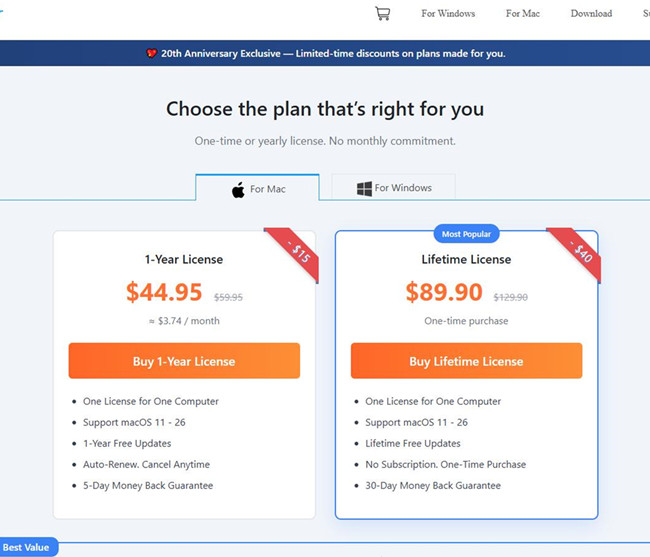
NoteBurner offers competitive subscription plans: $59.95/year and a lifetime plan for $129.95, though savings of up to 40% can occasionally be found through discounts. These discounts fluctuate and may not always be available. For many, the yearly plan offers the best value, while the monthly option works well for short-term use and is the most popular choice. The lifetime plan provides long-term value, but users should research, experiment with the software, and review the renewal terms before committing. In my experience, NoteBurner is slightly more expensive than its alternatives, given the advanced tools it offers.
Final Verdict: Great Value, but Could Use Refinements
NoteBurner is a reliable tool for converting Spotify music to downloadable files. Its user-friendly interface, solid performance, and flexible format options make it a strong choice. However, the interface could be simpler for a cleaner experience, and longer conversions with lossless formats may take more time. Overall, NoteBurner does one thing well: providing an efficient, no-frills solution for converting and downloading Spotify music. It is a solid option for users, though it could benefit from improvements in speed and interface design. Make sure you understand the renewal terms and choose the plan that fits your needs best.
Part 4: Pros and Cons of NoteBurner Spotify Music Converter
Every tool has its benefits and drawbacks, and NoteBurner Spotify Music Converter is no exception. It performs well when it comes to converting audio, but it may not be the easiest option for users who are converting Spotify music for the first time.
- Pros
- Removes DRM protection from Spotify music
- Converts music to various formats
- Supports batch conversion
- Retains metadata like artist names and album covers
- User-friendly interface
- Cons
- Requires manual adjustments
- Potential risk of account suspension for unauthorized use
- Can feel cumbersome for beginners
- Slower conversion speeds compared to some alternatives
- Limited customer support
- No automatic updates for new Spotify changes
- Inconsistent conversion results at times
- No native support for mobile devices
Part 5: User Experiences and Feedback on NoteBurner Spotify Music Converter
Interested in what NoteBurner Spotify Music Converter's customers are saying? Here are some points worth noting.
✔️Positive feedback: DRM removal and metadata support
Many users report that NoteBurner Spotify Music Converter successfully removes DRM. Metadata such as artist names and album covers is usually preserved, making it easier to store full albums locally. Some users note that it keeps the original data intact, which helps when organizing music libraries.
❌Negative feedback: Default format and manual settings
A common observation is that the software defaults to MP3. Users who prefer other formats need to manually adjust the settings. While conversions generally work well, repeatedly changing these settings can be cumbersome for beginners or those looking for a simpler workflow.
❌Negative feedback: Lossless claims
Some users question whether NoteBurner truly produces lossless FLAC files. Results may vary depending on the system and output settings, so they may not always match the advertised ultra-fast, lossless performance.
❌Negative feedback: Account risks
A few users have reported Spotify account warnings or suspensions for unauthorized use. This suggests that while the tool works for conversions, there may be risks related to Spotify's terms of service.
❌Negative feedback: Billing or subscription issues
Beyond technical performance, some users notice quirks with billing or subscriptions, including confusing auto-renewals, difficulties managing licenses, or slow support responses.
Overall experience and alternatives
Overall, NoteBurner Spotify Music Converter is reliable but may not feel straightforward for first-time users. Manual adjustments and potential account issues make it less convenient compared with alternatives like ViWizard Spotify Music Converter, which some users find provides a smoother experience, faster conversions, and fewer risks—qualities that may be preferable for long-term use.
Part 6: Legal and Usage Considerations for NoteBurner Spotify Music Converter
An important point for users is the legal and terms-of-service aspect. Spotify's Terms of Service generally do not allow extracting or storing music outside the official app. Using tools that record or convert streamed content can technically violate these rules and may result in account warnings or bans, according to some users. NoteBurner and similar software suggest that recording audio for personal use is allowed in some regions. However, this is not clearly approved by Spotify and carries some risk, so users should be cautious.
Part 7: Best Alternatives to NoteBurner Spotify Music Converter
ViWizard Spotify Music Converter is an excellent alternative to NoteBurner, offering a smoother, more user-friendly experience. While NoteBurner does the job, ViWizard shines with its intuitive interface and reliable performance.
The software's simple design makes it ideal for both beginners and experienced users. ViWizard simplifies the conversion process, allowing you to easily download music while preserving its original audio. Whether on Windows or Mac computer, ViWizard delivers fast, consistent results without wasting time on complicated settings.
A standout feature of ViWizard is its ability to convert Spotify's encrypted files. The software works in the background, making Spotify think you're just streaming music normally. However, like all similar tools, there's a slight chance Spotify may detect the activity. To avoid issues, it's best to start with smaller batches - perhaps one track at a time - and gradually increase as you get more comfortable. Just take care to proceed cautiously to ensure a seamless experience.
| Feature / Aspect | NoteBurner Spotify Music Converter | ViWizard Spotify Music Converter | ViWizard Streaming Audio Recorder |
|---|---|---|---|
| Purpose | Convert Spotify songs to regular audio files | Convert Spotify songs, podcasts, and audiobooks to common audio formats | Record or convert audio from many streaming services |
| Scope | Spotify music, podcasts | Spotify music, podcasts, audiobooks | Multiple platforms |
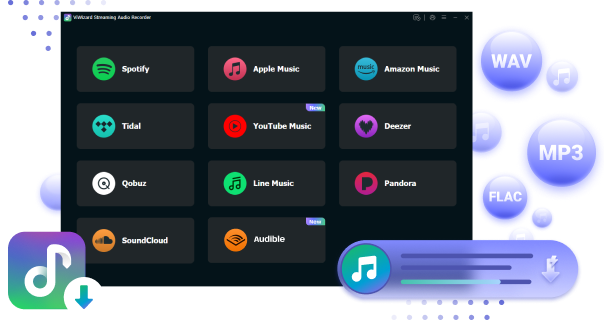
| Supported Input | Spotify only | Spotify only | Spotify, Apple Music, Amazon Music, Tidal, Deezer, YouTube Music, SoundCloud, Qobuz, LINE MUSIC |
| Output Formats | MP3, AAC, WAV, FLAC, AIFF, ALAC | MP3, M4A, M4B, WAV, FLAC, AIFF | MP3, M4A, M4B, WAV, FLAC, AIFF |
| Batch Conversion | ✔️ | ✔️ | ✔️ |
| ID3 Tag / Metadata Support | ✔️ | ✔️ | ✔️ |
| Quality & Settings | Good quality, adjustable bitrate/format | High quality, adjustable bitrate/sample rate | Lossless support, adjustable settings for each source |
| Use Case | Download Spotify playlists offline | Flexible conversion for Spotify songs, podcasts, and audiobooks | One app to save audio from multiple streaming apps |
| Free Trial Limit | 1 minute per track | 30 seconds per track | 30 seconds per track |
| Pricing | Yearly, lifetime | Monthly, yearly, lifetime (family plan and bundles available) | Monthly, yearly, lifetime (family plan and bundles available) |
| Best For | Simple Spotify downloads | Spotify songs + podcasts + audiobooks | Downloading from multiple streaming apps in one place |
Key Features of ViWizard Spotify Music Converter
Free Trial Free Trial* Security verified. 5, 481,347 people have downloaded it.
- Convert Spotify songs, playlists, albums, podcasts, and audiobooks
- Export Spotify music in 6 formats for different devices and players
- Support Spotify Premium and free accounts for music conversion
- Preserve music metadata when organizing converted collections
- Batch download Spotify playlists and large music libraries
Step 1Launch ViWizard and Add Your Music
Start by opening ViWizard Spotify Music Converter on your computer. After logging into your Spotify account, you can access the Spotify Web Player directly within the software - no matter your subscription type. Now, it's easy to add your desired content: simply drag and drop songs, albums, or playlists into ViWizard, or paste the URL of your chosen music into the search bar.

Step 2Adjust Output Settings
Next, customize the output settings to suit your preferences. Click the Menu icon in the top-right corner, then select Preferences. Under the Convert tab, you can choose from various formats like MP3, M4A, WAV, FLAC, AIFF, or M4B. Adjust the bitrate and sample rate to enhance the audio quality. If you'd like, you can also check the Save lyrics box to download lyrics along with your music files. Once you're happy with your settings, click OK to save them.

Step 3Choose Your Music for Conversion
Now, head back to the conversion list and make sure everything you want is selected. You can choose individual songs, entire albums, or full playlists. ViWizard even lets you convert audiobooks and podcasts, depending on your subscription. To make things easier, you can sort your list by title, artist, or album. Once you're ready, click Convert to start the process.

Step 4Access and Enjoy Your Converted Music
Once the conversion is finished, go to the History section in ViWizard to find all your downloaded tracks. Simply click the Open Folder icon to find the output folder with your converted files. Now that the files are free of restrictions, you can transfer them to any device for offline listening or enjoy them right within ViWizard's built-in media player.

Conclusion:
NoteBurner offers a reliable way to download and convert Spotify music. It successfully removes DRM and converts Spotify music to various formats, and includes a few extra tools that some users may find useful, making it a solid option.
Compared to other tools on the market, however, NoteBurner Spotify Music Converter's limitations become more apparent. While it handles DRM removal and format conversion well, the software can feel cumbersome to use. In comparison, ViWizard Spotify Music Converter stands out as a stronger alternative. It offers a smoother interface, faster conversions, and more consistent results without frequent adjustments. ViWizard also carries fewer risks of account detection, making it a safer choice for long-term use. For users looking for a hassle-free, reliable, and secure option, ViWizard is the clear winner.
You May Be Interested
NoteBurner YouTube Music Converter Review: Is It Safe and Worth Using?

Full Review: Is NoteBurner Apple Music Converter Worth It in 2026?

NoteBurner Tidal Music Converter Review: Download TIDAL Music and Best Alternatives

Spowlo: Full Review & Best Alternatives

Download & Install OnTheSpot Downloader

Best 10 Free Spotify Album Downloaders for MP3 Downloads

Nick Orin often turns to tech forums to see what apps people are talking about. He likes testing different software, comparing features, and finding out which tools are worth a try.

Leave a Comment (0)