


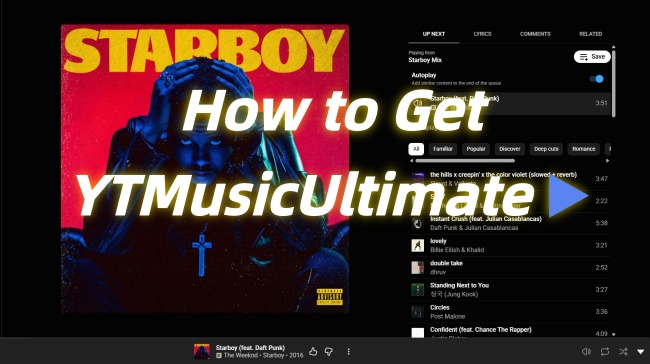
YouTube Music has tons of songs, playlists, and albums to explore, but sometimes the official app may not have every feature you are looking for. Maybe you want to keep music playing with your screen off, avoid interruptions, customize the app a bit more, or simply have more control over your listening experience. That's where YTMusicUltimate comes in. It is a modified version of the YouTube Music app for iOS that adds extra features beyond the standard app.
In this guide, we'll take a look at what YTMusicUltimate is, its main features, how to install and use it, and how to fix common issues. We'll also share a practical alternative if you want to save YouTube Music in high-quality audio files. Let's get started.
Part 1. What Is YTMusicUltimate?
YTMusicUltimate is a third-party modification (also called a tweak) for the YouTube Music app on iPhone and iPad. It adds extra features that are not available in the official YouTube Music app, giving you more control over their listening experience.
With YTMusicUltimate, you can enjoy features similar to some YouTube Music Premium benefits, including ad-free playback, background listening, and offline access. It can be useful if you want to listen to music with fewer interruptions or customize the app beyond its default settings. Check the details of YTMusicUltimate.
- Ad-Free Playback: YTMusicUltimate can block ads while playing YouTube Music, helping you enjoy a smoother listening experience.
- Background Playback: You can continue listening to songs even when your screen is turned off or while using other apps.
- Offline Listening: The tweak provides download options that allow you to save music for listening without an internet connection.
- OLED Dark Theme: YTMusicUltimate includes a darker interface style with an OLED-friendly theme for users who prefer a different visual experience.
- Extra Integrations: It also supports additional features such as Return YouTube Dislike for showing dislike counts and SponsorBlock for automatically skipping sponsored segments.
However, since YTMusicUltimate is not an official app from Google and is not available on the App Store, it requires additional installation steps through methods like sideloading. The available features may also vary depending on the version you install. If you prefer a simpler way to keep your favorite YouTube Music content offline, ViWizard YouTube Music Converter can be a practical alternative.
Part 2. How to Install YTMusicUltimate
Before installing YTMusicUltimate, it is important to know that this tweak is not available through the official App Store. Since it is a modified version of YouTube Music, you need to obtain the YTMusicUltimate IPA file from a trusted source or build it from the project source if required.
After getting the IPA file, you can install it on your iPhone or iPad using a sideloading method such as Sideloadly or TrollStore. The installation process depends on your device setup, iOS version, and the tool you choose.
- Computer: A Windows or Mac computer is required if you plan to use a sideloading tool like Sideloadly.
- iOS Device: An iPhone or iPad running a compatible iOS version (such as iOS 15 or later), with a USB cable for computer-based installation.
- Installation Tool: A sideloading tool such as Sideloadly, or TrollStore if your device supports it.
- YTMusicUltimate IPA File: Download a pre-built YTMusicUltimate IPA file from a trusted source, or build one from the project source by combining the tweak with the YouTube Music app using supported tools.
- Apple ID: A valid Apple ID is needed when signing apps through Sideloadly.
- Storage Space: Make sure your device has enough free storage to install the modified app.
2.1 Install YTMusicUltimate with Sideloadly
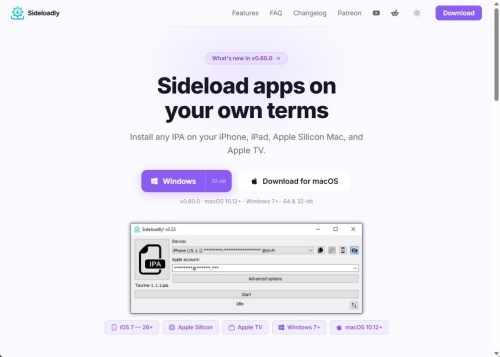
Sideloadly is a popular method for installing IPA files on iOS devices without using the App Store. It requires a computer and an Apple ID to sign the application before installation.
Steps to Install YTMusicUltimate Using Sideloadly
01Download and install Sideloadly on your Windows or Mac computer.
02Download the YTMusicUltimate IPA file and save it to your computer.
03Connect your iPhone or iPad to your computer with a USB cable and unlock your device.
04Open Sideloadly and sign in with your Apple ID.
05Drag and drop the YTMusicUltimate IPA file into the Sideloadly window.
06Click Start and follow the instructions to sign and install the app.
07Wait until the installation process is completed.
08On your iPhone or iPad, go to Settings > General > VPN & Device Management.
09Select your Apple ID profile and tap Trust to allow the app to run.
10Open YTMusicUltimate from your home screen and access its settings inside the YouTube Music app.
2.2 Install YTMusicUltimate with TrollStore
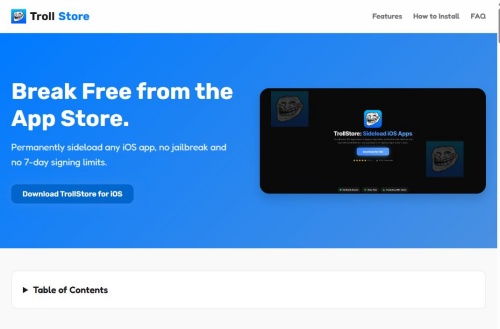
TrollStore provides another installation method for supported iOS devices. Unlike traditional sideloading, TrollStore uses a different installation approach and does not require repeated signing as long as the device and iOS version remain supported.
Steps to Install YTMusicUltimate Using TrollStore
01Download the YTMusicUltimate IPA file from a trusted source using Safari.
02Open the TrollStore app on your iPhone or iPad.
03Tap the "+" button in the top-right corner.
04Select the downloaded YTMusicUltimate IPA file from the Files app.
05Wait for TrollStore to install the application.
06Open YTMusicUltimate from your home screen and configure the available settings.
Part 3. How to Use YTMusicUltimate
After you install YTMusicUltimate on your iPhone or iPad, you can open the modified YouTube Music app. After signing in with your Google account, you will find additional options integrated into the YouTube Music interface. Here are step-by-step instructions to open YTMusicUltimate and enable its features.
Open and Set Up YTMusicUltimate
01Open your iPhone and tap YouTube Music on your home screen.
02Launch YouTube Music with your regular Google or YouTube account.
03Open the app settings.
04Check whether the YTMusicUltimate options are available.
Enable YTMusicUltimate Features
Depending on the version you install, YTMusicUltimate may provide additional settings for customizing your listening experience.
01Open the YouTube Music app on your device.
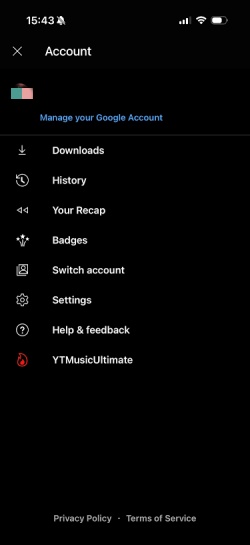
02Go to the app's settings panel to locate YTMusicUltimate, and tap it.
03Toggle on options such as ad removal, background audio playback, and high-quality streaming.
04To save tracks, find the custom download button of YTMusicUltimate instead of the default button.
The available features can vary between builds, so the exact settings and options you see may depend on the version installed. Make sure to check the integrated YTMusicUltimate settings menu to manage the available features.
Part 4. How to Fix YTMusicUltimate Not Working
If YTMusicUltimate crashes, fails to load, or has issues with certain features, the problem is often related to incompatible versions, incorrect tweak settings, or installation errors. To fix these problems, you can reapply the tweak settings, clear app data, or reinstall a compatible version of YTMusicUltimate.
Reapply YTMusicUltimate Settings: Open the YTMusicUltimate settings inside the YouTube Music app, re-enable the tweak options, and restart the app to reload the configuration.
Force Close and Restart the App: Close YouTube Music completely from the app switcher, then reopen it to fix temporary loading or playback issues.
Clear App Cache: Clear the YouTube Music cache from your device settings to remove temporary files that may cause crashes or performance problems.
Check Version Compatibility: Make sure your YTMusicUltimate build matches your installed YouTube Music version, as incompatible versions may cause features to stop working.
Reinstall YTMusicUltimate: Remove the current installation, download a compatible YTMusicUltimate IPA file, and reinstall it using Sideloadly, TrollStore, or another supported method.
Update the Installation Method: If the app was installed through a sideloading tool, check whether the certificate or signing has expired and reinstall or re-sign the app if needed.
Part 5. Best YTMusicUltimate Alternative for High-Quality Downloads
If you are looking for YouTube Music Premium-like features, such as background playback, offline listening, or additional customization options, a modified app like YTMusicUltimate may seem appealing. However, since it is not an official YouTube Music release, compatibility can sometimes become an issue. App updates, backend changes, or version mismatches may cause certain features to stop working, and some users may experience crashes, login problems, or other unexpected errors.
If you prefer a more stable way to keep your favorite YouTube Music content for offline listening, downloading songs as local audio files can be a practical alternative. ViWizard YouTube Music Converter helps you convert YouTube Music songs, playlists, and albums into common audio formats such as MP3, FLAC, WAV, and more. It also keeps original metadata and lets you customize audio quality settings, so you can easily organize and enjoy your music collection across different devices and media players.

Need YouTube Music for offline listening? ViWizard YouTube Music Converter helps YouTube Music users save songs, playlists, albums, and artists with convenient music conversion. Start converting and enjoy your music beyond the app.
How to Use ViWizard YouTube Music Converter
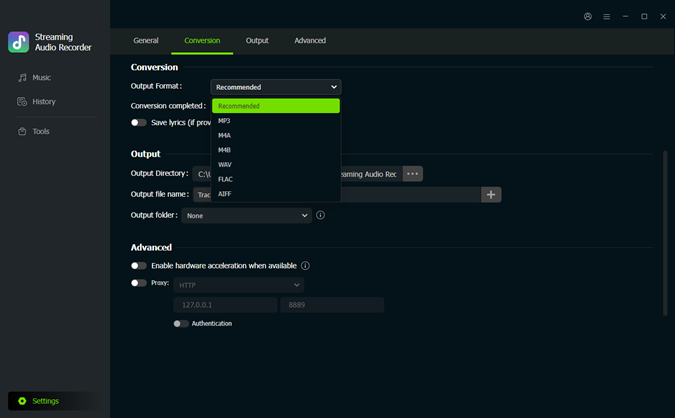 Step 1. Adjust the Output Settings
Launch ViWizard YouTube Music Converter on your Windows or Mac computer. Click Settings in the bottom-left corner and open the Conversion section. Choose your preferred output format, including MP3, FLAC, WAV, AIFF, M4A, or M4B, and customize settings like bitrate, sample rate, output folder, and file organization. Once finished, click Music from the left sidebar.
 Step 2. Open YouTube Music and Find Your Content
In the Music section, click the YouTube Music logo to open the built-in YouTube Music web player. Sign in to your account and browse for the songs, albums, playlists, or artists you want to save as local audio files.
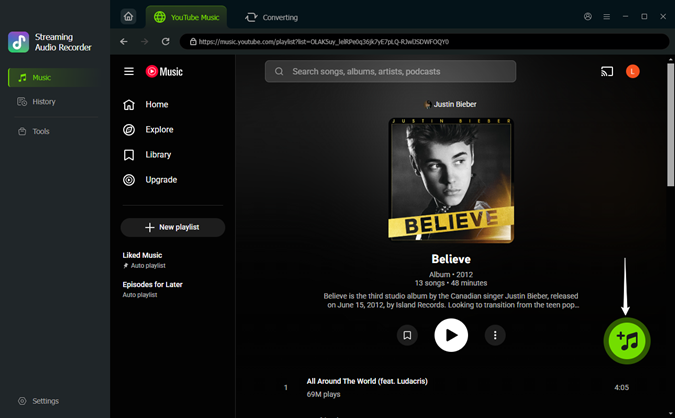 Step 3. Add YouTube Music Songs to the Conversion List
Search for your desired music and open the song, album, or playlist page. Click the green + button, and ViWizard will analyze the available tracks. Select the songs you want to download, then click Add to list to prepare them for conversion.
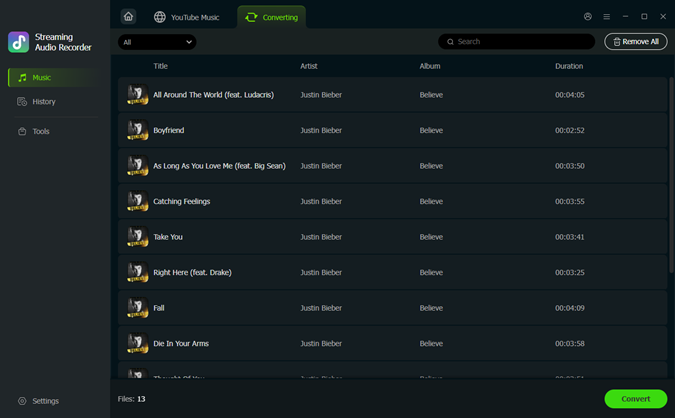 Step 4. Convert and Save High-Quality YouTube Music Files
Click Converting at the top of the window to review your selected tracks, then click Convert to start downloading. After the process finishes, go to History to access your converted songs or click the folder icon to find the saved files on your computer. Your YouTube Music tracks are now saved as local audio files with your chosen format and quality settings, giving you more flexibility than app-based offline listening.
Part 6. FAQs about YTMusicUltimate
Is YTMusicUltimate an official YouTube Music app?
No. YTMusicUltimate is a modified version of the YouTube Music app created by third-party developers. It is not available through the official App Store and is not developed or supported by Google.
Can YTMusicUltimate download YouTube Music songs?
The download features available in YTMusicUltimate depend on the specific build you install. If you want a more reliable way to save YouTube Music songs as local audio files, ViWizard YouTube Music Converter is a dedicated tool that converts songs, playlists, and albums into formats such as MP3, FLAC, WAV, and more.
Does YTMusicUltimate require jailbreak?
Not necessarily. Depending on your device and iOS version, you may be able to install YTMusicUltimate through sideloading tools like Sideloadly or TrollStore without jailbreaking your device.
Conclusion
To sum up, YTMusicUltimate lets you enjoy YouTube Music, adding features like background playback, fewer interruptions, and extra customization options. However, since it is a third-party tweak, the setup may require a few more steps, and some issues may appear after YouTube Music updates.
If you want to save your favorite YouTube Music songs for offline listening, ViWizard YouTube Music Converter is another simple option. It helps you convert songs, playlists, and albums into local audio files with different formats and quality settings, making it easier to enjoy your music anywhere.
Choose the method that works best for you, sit back, and enjoy your favorite songs. Wish you a wonderful music journey!
You May Be Interested
How to Download and Install ReVanced YouTube Music (Step-by-Step)
Install EeveeSpotify on iPhone & iPad to Unlock Premium Features

ReVanced Spotify Not Working? Try These Alternatives Instead

YouTube Music Premium APK (2026): Free MOD, Risks & Safe Alternative

How to Add YouTube Music Widget on Android/iOS/Desktop [Full Guide]

From new releases to old favorites, Matt Smith is always on the lookout for good music. He follows the latest in digital entertainment and shares songs and media he thinks are worth checking out.

Leave a Comment (0)