


I have noticed that with the latest updates the app does not sound as good as before. It sounds with less bass and more treble, which i dont like
–Ancient_Pause4055 from Reddit
Do you hold the same feeling that YouTube Music has an unstable volume system? Many YouTube Music users find that YouTube Music has a lower volume than other music streaming services. Even if they turn up the volume to the highest, it still sounds like a normal standard for Spotify. How to solve this annoying problem? This guide shows how to make YouTube Music louder.
Part 1. Why is YouTube Music Not Loud Enough
You can find the reason we collect is that YouTube Music is not loud enough. We list all below.
Auto-Normalized
Click the Stats for Nerds in More icon at the bottom of the home interface when we listen to music on YouTube Music, we will find that the volume of the music has been normalized, which means YouTube Music cuts down dB automatically.
EQ
The Equalizer setting also influences the volume of YouTube Music. Your Device Volume. If your device you set a low volume, it also leads to YouTube Music sounds at low volume.
Your Web Browser
An old version of the web browser, or you have set a low volume on your web browser. All these will lead you to have a bad experience when you listen to YouTube music.
Your Headphone or Speaker Has Issues
If you're sure your device or web browser has no problem, your YouTube Music is not loud enough may be related to your headphones or speakers. Check whether it can work successfully in other music streaming.
The Sound and Audio Settings
You may have set the wrong sound and audio preferences on your computer.
Spatial Sound
Windows 10 has a spatial sound function, allowing you to enjoy the surround sound effect. However, it's also causing YouTube Music no loud enough.
Part 2. How to Make YouTube Music Louder
Now that we understand why YouTube Music might sound too quiet, let’s explore practical solutions. We’ll start with basic device settings and then move on to adjustments inside the YouTube Music app.
Fix 1: Check the Device Volume
When you encounter the problem of YouTube music in low volume, the first thing you should do is to check your device volume. You can turn up the volume button on your mobile phone to make YouTube Music louder.

Fix 2: Check the PC Sound and Audio Settings
If you listen to YouTube Music on your pc, you also need to check whether you turn down or off the volume of your pc. Adjust the audio and sound system until you think it's the best sound quality. Click Settings, tap on the system>sound, glide to find App volume device preferences under Advanced sound options, and you can adjust the system sound according to your demand.

Fix 3: Disable the Spatial Sound
If you open the spatial sound, you can directly click the sound icon at the bottom left of your computer screen. Turning off the spatial sound may enhance your experience of listening to YouTube music.

Fix 4: Check the Browser Volume on PC
If your YouTube Music still has low sound after checking the system volume, you can check whether you have the wrong settings for your web browser. Click the Sound Button at the corner of your computer screen, tap on the output format, and you can see the volume mixer. Check the situation of the web browser you are using. Raise the volume if you think YouTube Music is not as loud as you think.

Fix 5: Update Your Web Browser
After ensuring the devices, if the situation still exists, check the update of your web browser. Click the menu to check whether the version of your web browser is the newest one. If not, choose to update your web browser.

Fix 6: Enable or Customize EQ [For Android]
YouTube Music uses balanced audio by default, which preserves neutrality but may sound quiet on some devices. Custom EQ settings let you increase perceived loudness and enhance clarity without distortion.
The Android version of YouTube Music includes a built-in 4-band equalizer. You can boost bass, treble, and use preset profiles like Rock or Pop to shape playback. Here’s how to adjust it:
Step 1 Open the YouTube Music app and tap your profile picture.
Step 2 Go to Settings > Playback > Equalizer.
Step 3 Enable the EQ toggle (if it’s off).
Step 4 Switch to Custom mode.
Step 5 Slightly raise each frequency slider to enhance fullness and loudness.
Step 6 Test playback and fine-tune for your headphones or speakers.
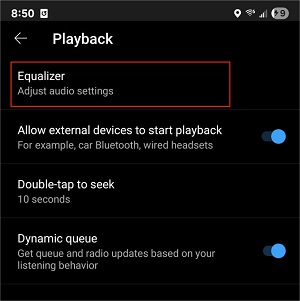
Gain Boost Hack: Instead of just choosing a preset, switch to Custom. Raise every single frequency slider to its maximum level. This increases the overall output volume (pre-amp) without distorting the original balance of the song.
Many users find that turning the EQ ON actually lowers the volume slightly to create "headroom" for adjustments. If you aren't using the "every bar to max" hack, you might find the volume is louder with the EQ turned OFF.
Fix 7: Enable Consistent Volume
If YouTube Music feels too quiet or if some songs sound much softer than others, turning on Consistent Volume can help. This feature was introduced by YouTube Music in April 2025 to balance playback levels across different tracks.This feature is available on both Android and iOS. It keeps your tracks at a consistent volume level, so you don’t have to constantly adjust the volume when a loud rock song plays after a quiet acoustic track.
Step 1 Open the YouTube Music app and tap your Profile icon.
Step 2 Go to Settings > Playback.
Step 3 Find the Consistent volume toggle.
Step 4 Turn it OFF to hear the song at its original, uncompressed loudness. If the track is still too quiet, turning it ON may actually boost the gain of exceptionally low-volume recordings.

Fix 8: Re-adjust and Fix the Volume Slider [For Desktop]
If you’re using YouTube Music on a desktop browser and the volume sounds too low, the issue may be related to the YouTube Music volume slider. On desktop, the YouTube Music web player has its own volume control, which works independently from your system volume. Even if your computer volume is set to 100%, the web player slider can still limit the output.
In some cases, the YouTube Music web player slider may not reach its true maximum level. The visual indicator might appear full, but the internal gain could be slightly capped. This can make YouTube Music sound quieter than expected.
Many users have reported that manually re-adjusting the volume slider can fix this issue. To try this method:
Step 1 Hover over the speaker icon in the bottom-right corner of the YouTube Music web player.
Step 2 Drag the volume slider all the way to the left.
Step 3 Then firmly drag it back to the far right.
Step 4 You can also use your mouse scroll wheel while hovering over the slider to ensure it reaches 100%.
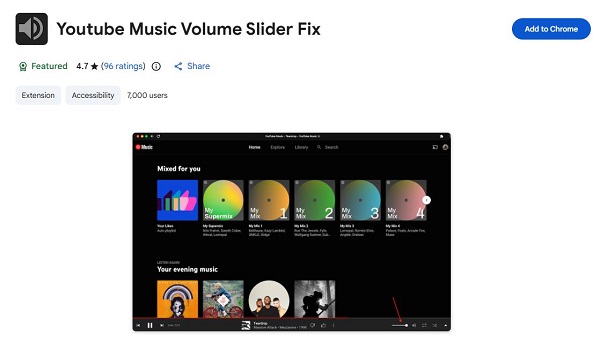
If re-adjusting the slider does not work, you can install a YouTube Music Volume Slider Fix extension from the Google Chrome Web Store. This extensions replaces the default pop-up control with a persistent and more responsive volume bar. It also allows finer volume adjustments (such as 1% increments instead of 5% or 10%), giving you more precise control and helping you maximize loudness without distortion.
Fix 9: Use Browser-Based Sound Boosters
If you’ve maxed out every volume slider and YouTube Music still sounds too quiet, the limitation may be your browser’s built-in output cap. Desktop browsers often apply safety limits to prevent distortion or hearing damage. In this case, you can bypass the default ceiling by using a browser-based sound booster that digitally amplifies the audio signal.
One reliable option is Volume Master, available on the Chrome Web Store. This extension lets you boost the volume of a specific tab, including the YouTube Music web player, by up to 600%. It’s especially helpful for quiet tracks, low-powered laptop speakers, or older desktop setups that struggle to produce strong output.
Step 1 Install the Volume Master extension from the Chrome Web Store.
Step 2 Open the YouTube Music web player.
Step 3 Click the extension icon in your browser toolbar.
Step 4 Slowly increase the gain until you reach your desired loudness.
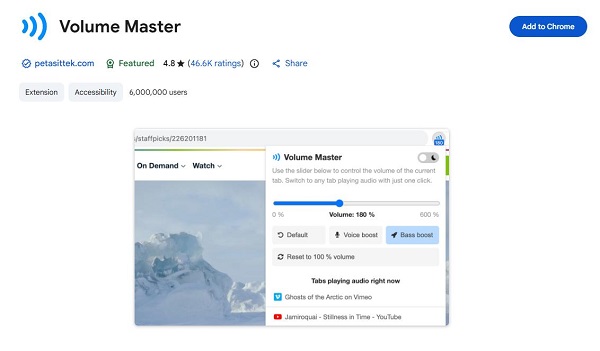
However, increase the gain carefully. Pushing amplification too high can cause audio clipping, which results in crackling or distorted sound.
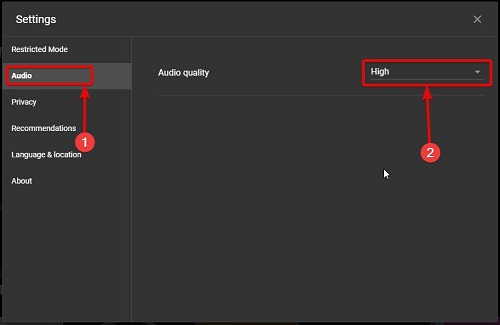
Fix 10: Set Audio Quality to Always High [For Premium]
If YouTube Music sounds flat or weak, the issue may not be the volume level, it could be the streaming quality. Lower audio quality settings use heavier compression, which can reduce clarity, depth, and perceived loudness. Switching to High quality allows you to enjoy fuller and clearer sound. However, this option is only available to YouTube Music Premium users.
On Android or iPhone:
Step 1 Open the YouTube Music app.
Step 2 Tap your profile picture.
Step 3 Go to Settings.
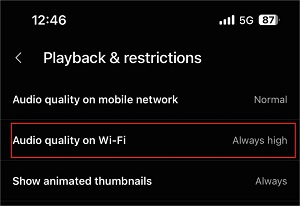
Step 4 Select Playback & Restrictions (or Audio Quality).
Step 5 Set both Wi-Fi streaming and Mobile network streaming to Always High.
On Desktop (Web Player):
Step 1 Click your profile picture in the top-right corner of the YouTube Music web player.
Step 2 Select Settings > Playback.
Step 3 Set Audio quality to High.
Fix 11: Downgrade the YouTube Music Version [For Android]
Most Android users report that the low volume of YouTube Music occurs after the upgrading version of YouTube Music. Downgrading the version can solve the problem for most Android users.
YouTube Music will update with a new option for Consistent volume, it has the same function as the YouTube equivalent. The tracks of the recordings will sound louder or less loud. YouTube Music already offers an EQ for tweaking sound output, but hasn't had a way to automate changes in output from one track to another.
Part 3. The Ultimate Fix to Keep YouTube Music Loud and Clear
If you’ve tried every setting but YouTube Music still feels inconsistent or too quiet, the root cause may be streaming limitations. Streaming services compress audio to save bandwidth. While this keeps playback smooth, it can also make songs sound thinner or less powerful compared to high-quality local files.
This is where ViWizard YouTube Music Converter becomes your best audio companion. This tool allows you to convert and download tracks, albums, playlists, and podcasts from YouTube Music into formats like MP3, FLAC, WAV, AIFF, M4A, or M4B with high audio quality and full ID3 tags. Plus, it also lets you fine-tune bit depth and sample rate for greater control over sound fidelity.

Download songs, playlists, albums, and your whole music library from 10 major streaming platforms, including YouTube Music, to MP3, FLAC, WAV, AIFF, M4A, or M4B with original sound quality and full song info and keep your music forever.
Why Downloading Is the Best Way to Boost Volume
Using a tool like ViWizard YouTube Music Converter provides three major audio advantages:
- Bypass YouTube’s volume limits: Downloading the raw audio helps you avoid streaming restrictions and normalization settings. You get the original sound of the track without artificial volume reductions.
- Higher audio quality: Streaming quality can vary based on network conditions. A downloader lets you save music in high-quality formats such as 320kbps MP3 or lossless options, which sound fuller and clearer than heavily compressed streams.
- Better volume control: Once music is stored as a local file, you can play it in professional media players like VLC or other apps that support pre-amp boosting. These players can increase volume without the distortion that sometimes occurs with browser-based sound boosters.
How to Use ViWizard to Get Louder YouTube Music
Step 1 Choose WAV or 320kbps MP3 for Better Sound
Open ViWizard YouTube Music Converter on your Windows or Mac computer. Go to Menu > Preferences > Conversion and select WAV or FLAC as the output format. These formats keep the original sound quality so music does not feel weak or thin. You can also choose MP3 at 320kbps, which gives high quality and strong playback. Pick a folder to save your files and click OK.

Step 2 Open Your YouTube Music Library
Go back to the main screen and open the built-in YouTube Music web player. Sign in to your account so you can access your songs, liked tracks, and playlists.

Step 3 Select Songs to Download
Find the songs or albums that sound too quiet in the app. Open the playlist and click the + (Add) button. A list of tracks will appear. Select the songs you want and click Add to List.

Step 4 Convert to High-Quality Local Files
Click Convert. ViWizard will download the audio and save it as a local file on your computer. Because the file is stored locally, it is not limited by streaming volume restrictions. When the process finishes, click the folder icon to find your music.

Step 5 Play with Tools That Allow Higher Volume
Now you can play the files without browser limits.
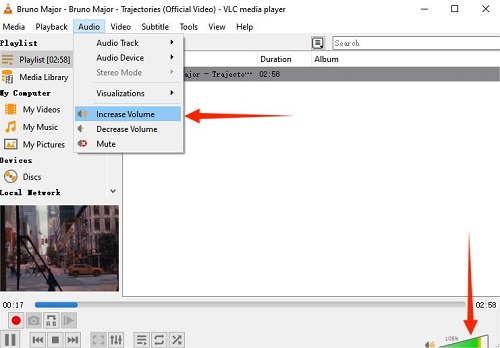
Use VLC Media Player
VLC lets you increase volume up to 200%. Since your files are high quality, you can boost the sound without distortion.
Play on MP3 Players or External Speakers
Transfer your files to an MP3 player or a Bluetooth speaker with strong amplification. These devices often sound louder and fuller than phone speakers.
Read More : How to Download Music to MP3 Player from YouTube Music
Read More : Can Alexa Play YouTube Music? Yes, But Only If You Do This
Part 4. FAQs about YouTube Music Quality
Does Spotify sound better than YouTube Music?
Spotify offers better music quality for users than YouTube Music. Spotify offers 160 kbps for Free users and up to 320 kbps for Premium users. However, YouTube only offers 128 kbps and 256 kbps for Free and Premium users.
Does Apple Music sound better than YouTube Music?
Although Apple Music offers the same bit rate as YouTube Music, Apple Music provides a lossless and hi-res lossless option to ensure users' smooth experience.
Is YouTube Music's Sound Quality Inferior?
It depends on users' habits. If you seek the highest possible sound quality, YouTube Music may not satisfy you. You can consider TIDAL and Apple Music as your choice of music players.
Conclusion
YouTube Music has its pros and cons. The frequent problem of low sound annoys users. We hope the guidance methods can help you solve this problem. By the way, ViWizard YouTube Music Converter is also an efficient tool to help you record any sound on your computer. Let's try these solutions to make YouTube Music louder.
You May Be Interested
YouTube Music Equalizer: How to Find and Use It on Android, iOS, and Desktop

6 Best Ways to Find Music from a YouTube Video

How to Set Alarm with YouTube Music on iPhone and Android

YouTube Music Audio Quality in 2026: Is It Good?

How to Get YouTube Music Badges and What They Mean

How to Fix YouTube Music Shuffle Not Working

From new releases to old favorites, Matt Smith is always on the lookout for good music. He follows the latest in digital entertainment and shares songs and media he thinks are worth checking out.

Leave a Comment (0)