


If you want to download Apple Music for free, an Apple Music free trial is one option. Apple Music does not have a permanent free plan, but eligible users can use it for offline listening during the trial. You can download content from the Apple Music catalog in the Apple Music app while the trial is active. However, these downloads are not permanent audio files and cannot be kept after the trial ends, which is why some users turn to other free download options.
This guide covers three ways to download Apple Music for free: an Apple Music free trial, online Apple Music download websites, and free Apple Music downloaders, including how each method works.
Part 1. Can You Download Apple Music for Free?
Yes, but "download Apple Music for free" does not mean getting permanent, unrestricted music files for free. Eligible users can start an Apple Music free trial and download catalog music for offline listening. Apple currently offers a one-month free trial for new subscribers, with longer promotional trials for some eligible devices and offers. Apple provides access to over 100 million songs and supports offline downloads, but these downloads remain tied to the subscription rather than providing permanent ownership of unrestricted audio files.
Apple Media Services states, "You can acquire Content on our Services for free or for a charge," with either treated as a "Transaction." Music purchased from the iTunes Store is separate from Apple Music subscription downloads and can provide longer-term access to purchased, DRM-free music.
Some users may also consider Apple Music downloaders, such as ViWizard Apple Music Converter, which can convert Apple Music content into separate audio files for personal use, including backup purposes. This is an unofficial method, not an Apple Music feature.

Need Apple Music in more flexible audio formats? ViWizard Apple Music Converter helps Apple Music subscribers create a personal music library with seamless music backup. Build your collection and keep your music beyond the Apple Music app.
Part 2. How to Download Apple Music for Free with a Free Trial
Apple Music offers eligible new users a free trial with subscription features, including adding songs, albums, and playlists to the library and downloading them for offline listening.
After activating the trial, open Apple Music or iTunes, sign in, authorize your device, and browse Home or search the catalog of over 100 million songs. Apple Music supports up to 100,000 songs and up to 10 associated devices, including five computers.
When the free trial ends, downloaded Apple Music songs become unavailable for playback. An active subscription is required to continue listening, including for downloads made by paid subscribers.
An eligible Apple Music free trial lets users add songs, albums, or playlists to their library and download them for offline listening. In the Apple Music app, find the content, tap Add, then Download. For individual songs, open More and choose Download. On Mac or PC, add the content first, then click Download next to a song or at the top of an album or playlist.
Step 1: Sign Up for an Apple Music Free Trial
01Open the Apple Music app on your iPhone, iPad, Mac, or PC. If you are on a computer, you can also open iTunes or visit the Apple Music website.
02Go to the Home tab or account section and look for the free trial offer shown on the screen. If a banner does not appear, tap your profile icon to check available plans.
03Tap the free trial offer, then choose a plan such as Individual, Family, or Student based on your eligibility.
04Confirm the subscription by entering your Apple ID password or using Face ID or Touch ID. Once confirmed, your trial starts immediately.
Step 2: Download Music on Apple Music During the Free Trial
On iTunes for Windows or older macOS
01Open the iTunes app on your computer and sign in with the Apple ID used for your free trial. You can check this by clicking Account > Sign In at the top menu.
02Use the Search box in the upper right corner to find a song, album, or playlist.
03When results appear, switch the search filter to Apple Music so you are browsing the streaming catalog.
04Click the item you want, then right click it and select Add to Library.
05After it is added, click the cloud icon next to the item or right click and choose Download. Wait for the download to finish before going offline.
On the Music app for Mac
01Open the Music app and make sure you are signed in with the correct Apple ID from the Account menu.
02Use the Search field in the upper right corner and select Apple Music to search the full catalog.
03Open the song, album, or playlist you want to save.
04Click the three dot menu next to the item and choose Add to Library.
05Click the cloud icon to download it. You can track progress in the Downloads section under Library.
On the Music app for iPhone or iPad

01Open the Music app and tap Search at the bottom of the screen.
02Find the song, album, or playlist you want from Apple Music.
03Tap the three dot menu next to the item and choose Add to Library.
04Tap the three dot menu again and select Download. Make sure you are connected to Wi-Fi to avoid interruptions.
Part 3. How to Download Apple Music for Free with an Online Apple Music Download Website
Online Apple Music download websites process supported content through a browser without installed software. Users provide the supported content and follow the site's download instructions, but sources, formats, and features vary.
For example, AAPLMusicDownloader is free but focuses on music outside the Apple Music catalog rather than original Apple Music subscription tracks. Unlike Apple Music downloads, which remain within the Apple Music app, some online downloaders provide separate audio files such as MP3.
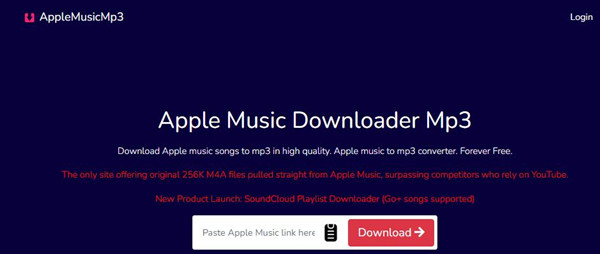
AAPLMusicDownloader provides a browser-based way to process supported content. In Apple Music, open More > Share > Copy Link, then paste the link into AAPLMusicDownloader and submit it. It focuses on music outside the Apple Music catalog rather than original Apple Music subscription tracks, so supported sources and download options vary.
01Open Apple Music and find the song, album, or playlist you want to process.
02Open More > Share > Copy Link to copy its Apple Music URL.
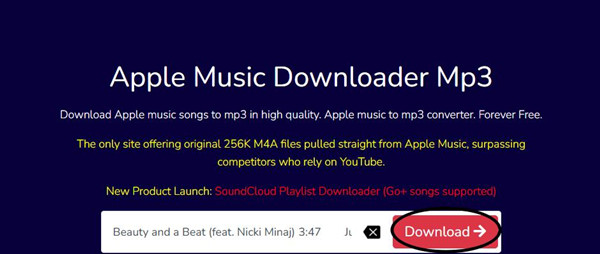
03Open AAPLMusicDownloader in your browser and paste the link into the input field.
04Click Download and wait for the results.
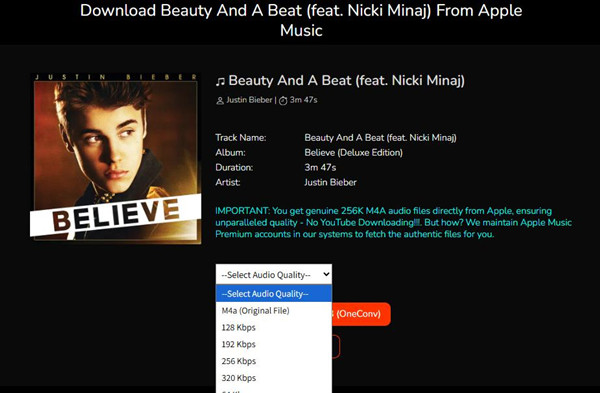
05Select Generate Download Link for an available audio option.

06Choose the download option and save the file through your browser.
Read More: AAPLMusicDownloader Review & Guide
Part 4. How to Download Apple Music Songs with a Free Apple Music Downloader
A free Apple Music downloader is installed on a supported computer. Gamdl Apple Music Downloader is free software that can process supported Apple Music content. ViWizard Apple Music Converter is paid software with a free trial and uses a built-in Apple Music Web Player to work with supported Apple Music catalog content within its trial limits. Compared with Gamdl Apple Music Downloader, ViWizard Apple Music Converter offers multiple output formats, metadata preservation, and advanced batch processing for users who want more control over their downloads.
4.1Using Gamdl Apple Music Downloader to Download Apple Music for Free
Gamdl is a command-line downloader that requires Python 3.10 or later, an active Apple Music subscription, and Apple Music browser cookies in Netscape format. Run Gamdl with a supported Apple Music URL, then use interactive selections or configuration options to control the download. It supports songs, albums, playlists, artists, and music videos, with options for codecs, metadata, lyrics, cover art, and file naming.
01Install Python 3.10 or later, then install Gamdl with pip install gamdl.
02Sign in to music.apple.com and export your Apple Music cookies in Netscape format.
03Save the cookies as cookies.txt, or specify their location with --cookies-path.
04Open Command Prompt, PowerShell, or another terminal and run Gamdl with the Apple Music URL you want to process.
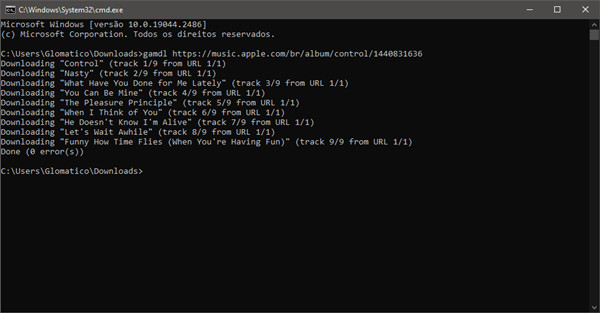
05Use the Arrow keys, Space, and Enter to make interactive selections when prompted.
06Use command-line options or the configuration file to set the output folder, codec, metadata, lyrics, cover art, and file naming.
07Open the configured output folder after Gamdl finishes to find the downloaded files.
Read More: Gamdl Apple Music Downloader Review & Guide
4.2Using ViWizard Apple Music Converter to Download Apple Music for Free
ViWizard Apple Music Converter includes a built-in Apple Music Web Player. Sign in, search or browse for songs, albums, or playlists, or paste an album or playlist URL. Use three-line menu > Preferences to choose the output format and audio settings. Supported formats include MP3, Lossless, M4A, M4B, WAV, FLAC, and AIFF.
Key Features of ViWizard Apple Music Converter
Free Trial Free Trial* Security verified. 5, 481,347 people have downloaded it.
- Convert Apple Music songs, playlists, albums, and artists
- Export Apple Music in 6 formats for different devices and players
- Preserve metadata and lyrics when creating music collections
- Organize converted music by artist and album
- Batch download large Apple Music collections
01Install ViWizard Apple Music Converter on your Windows or Mac computer and open it.
02Sign in to Apple Music through the built-in Apple Music Web Player.
03Open the three-line menu > Preferences and choose an output format such as MP3, Lossless, M4A, M4B, WAV, FLAC, or AIFF.
04Adjust the available audio settings and click OK.
05Search or browse for the songs, albums, or playlists you want to save, or paste a URL into the Web Player.
06Click Add Music > Add to List to add the selected content to the conversion list.
07Review the list and click Convert to start processing.
08Open History > Open Folder when the process finishes to find the saved files. The free trial converts only the first 30 seconds of each song; full-track conversion requires a paid license.
Part 5. Free Apple Music Download Methods Compared
| Method | How It Works | Requires Apple Music Subscription | Local Audio Files | Best For |
|---|---|---|---|---|
| Apple Music Free Trial | Download directly in Apple Music | Yes | No | Offline listening in Apple Music |
| Online Apple Music Website | Paste an Apple Music link into a web downloader | Varies | Yes, for supported content | Browser-based downloads |
| Free Apple Music Downloader | Use dedicated software or a command-line tool | Depends on the downloader | Yes | Saving music as local files |
The three methods differ in how they download and save Apple Music content. An Apple Music free trial lets you download music for offline listening, but the downloads stay in Apple Music and require an active subscription. An online Apple Music website works through a browser, with supported content and download options varying by service. A free Apple Music downloader such as Gamdl or ViWizard can save supported content as local audio files.
Part 6. Key Takeaways
An Apple Music free trial is suitable for offline listening, while online downloaders provide a browser-based option with varying support.
For local files, a free Apple Music downloader such as ViWizard Apple Music Converter can save songs as MP3, WAV, FLAC, M4A, M4B, or AIFF. Its free trial lets you test the workflow, and Apple Music subscribers can use it to save songs as local files for long-term access and management outside the Apple Music app.
You May Be Interested




Adam Gorden is always looking for new ways to explore music and videos. He likes trying different media tools and learning how to manage audio and video files with ease.

Leave a Comment (0)