


SpotiSongDownloader is one of those online tools that shows up when people search for options to download Spotify songs for free. It is a web-based Spotify downloader that lets users paste a track or playlist link and turn it into downloadable audio files.
Compared to many similar tools, SpotiSongDownloader is known for being simple. It runs in the browser and follows a basic step-by-step process. This makes it easy to try without installing anything.
This post looks at how SpotiSongDownloader works in practice. It checks whether it works well, how stable it is, and whether it is really worth using. It also looks at ViWizard Spotify Music Converter as a more stable option.

Need Spotify music for offline listening? ViWizard Spotify Music Converter helps Spotify Premium and free users save songs, playlists, albums, podcasts, and audiobooks in popular audio formats with fast, reliable conversion. Start converting and enjoy Spotify music across more devices.
Part 1. What Is SpotiSongDownloader?
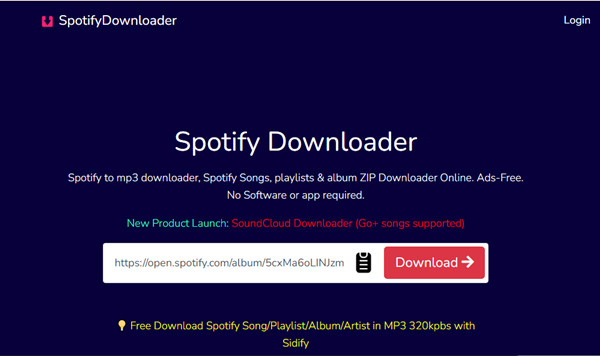
SpotiSongDownloader (spotisongdownloader.com) is a web tool that lets users download Spotify music by pasting a song, album, or playlist link. It converts the link into audio files, usually MP3, that can be downloaded in a browser. Many users use it for offline listening.
It works on phones and computers with no installation needed. It also associates with a tool called Sidify Spotify Music Converter, which claims to download 320 Kbps MP3 files from Spotify. However, neither tool is official or connected to Spotify.
Part 2. How Does SpotiSongDownloader Work?
SpotiSongDownloader runs in a browser and supports Chrome, Firefox, Safari, Opera, and other Chromium-based browsers. It does not download from Spotify directly. It reads link data like song titles and artists, then matches audio from YouTube or other sources to create MP3 files. For playlists and albums, it also offers a ZIP download to bundle all tracks.
Because it uses matching, results are not always accurate. Some tracks may differ from the original, and audio quality may vary. Users can choose a quality option before downloading, such as 320 Kbps, 256 Kbps, 192 Kbps, or 128 Kbps.
- Web-based downloads: Works in your browser with no Spotify Premium or apps needed.
- Batch download: Download full playlists or albums as a ZIP file.
- MP3 format: Download Spotify songs in MP3 format, up to 320 Kbps.
- Metadata: Keeps song info like title, artist, and album.
Part 3. How to Use SpotiSongDownloader to Download Spotify Songs Online
SpotiSongDownloader works similarly with other tools like AAPLMusicDownloader or SCloudPlaylistDownloader. The process is simple: you copy a Spotify link, paste it into the site, and let the tool process it. After that, you can choose a download option and save the file to your device and manage the files afterward.
01Open Spotify on your device or browser and find the song, album, or playlist you want.
02Click the three-dot menu next to the item and select "Share", then choose "Copy Link".
03Open SpotiSongDownloader in your browser.
04Paste the copied link into the input box at the top of the page.
05Complete the Cloudflare check if it appears, then click "Verify you are human".
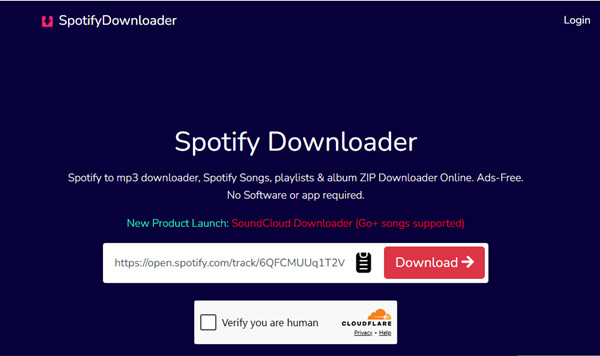
06When the results page loads, click "Generate Download Link". You may also see options like "Download 320 Kbps MP3 (Sidify)", which redirects to Sidify Spotify Music Converter.
07Select "Generate Download Link" for single tracks, or "Download ZIP" for playlists and albums, and pick an option like M4A if available. If Spotify login is required for full ZIP downloads, proceed with caution.
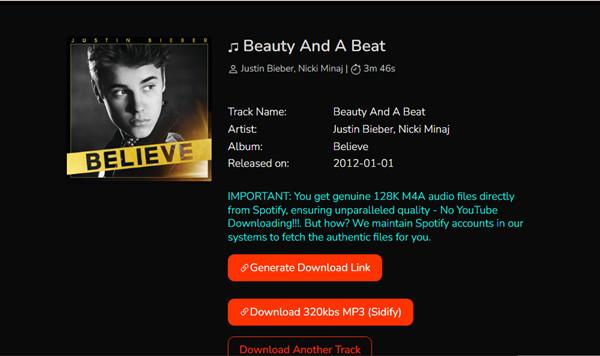
08Wait while the file is generated and the download starts automatically.
09After it finishes, open your browser download folder to access the file.
Part 4. Is SpotiSongDownloader Safe and Legal to Use?
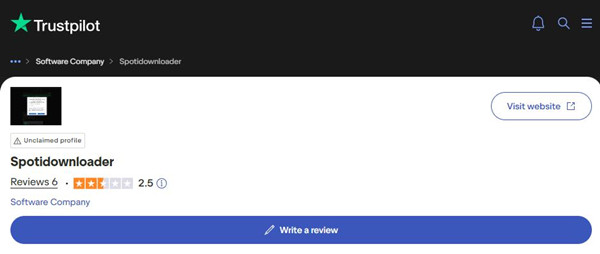
SpotiSongDownloader is not an official Spotify service. It is not consistently flagged as malware, but it has mixed safety ratings and many user complaints. It should be used with caution.
There is no strong evidence of malware, but risks still include pop-up ads, redirects, wrong downloads, missing tracks, and unstable results. Users should avoid entering Spotify login details and be careful with links and downloads. Content is for personal use only.
For a more reliable option, ViWizard has a 4.2/5 Trustpilot rating. Its Spotify Music Converter is widely used and offers more stable performance.
Part 5. What Are the Best SpotiSongDownloader Desktop Alternatives?
If you use SpotiSongDownloader often, you may notice a pattern. It works for quick downloads, but results are not always consistent. Some tracks download correctly, while others may be missing. Playlist downloads can also fail or feel unreliable.
For a more stable option, a desktop tool is usually better. One common choice is ViWizard Spotify Music Converter.
Instead of pasting links into a browser, ViWizard Spotify Music Converter is installed on your computer and works directly with your Spotify library. You choose songs, playlists, or albums inside the app and download them in a more controlled process. Compared to online tools, it is more stable for batch downloads and keeps music organized with details like song title, artist, and album information.
| Feature | SpotiSongDownloader | ViWizard Spotify Music Converter |
|---|---|---|
| Platform | Web tool (browser) | Desktop app (Windows, Mac) |
| Install | No install needed | Needs installation |
| How it works | Paste Spotify link | Use Spotify library in app |
| Output format | MP3 | MP3, M4A, WAV, M4B, AIFF, FLAC |
| Audio quality | Up to ~320kbps (not stable) | Up to 320kbps or lossless options |
| Batch downloads | Limited and unstable | Stable for playlists and albums |
| Metadata | Basic info | Full song info + artwork |
| Stability | Can fail or miss songs | More stable and consistent |
| Best use | Quick downloads | Long-term music library |
Key Features of ViWizard Spotify Music Converter
Free Trial Free Trial* Security verified. 5, 481,347 people have downloaded it.
- Convert Spotify songs, playlists, albums, podcasts, and audiobooks
- Export Spotify music in 6 formats for different devices and players
- Support Spotify Premium and free accounts for music conversion
- Preserve music metadata when organizing converted collections
- Batch download Spotify playlists and large music libraries
 Step 1: Open ViWizard and log into Spotify
Start by launching ViWizard Spotify Music Converter on your Windows or Mac computer. Use the built-in Spotify Web Player to sign in to your Spotify account. This works for both Free and Premium users. Once logged in, click the "Add Music" button, usually at the bottom right. When it becomes active, you can start selecting songs, albums, or playlists.
 Step 2: Set output preferences
Before downloading, set how your files will be saved. Click the menu icon in the top-right corner and open Preferences or Settings. Under the "Convert" tab, choose an output format such as MP3, M4A, WAV, FLAC, or AIFF. You can also adjust quality settings like bitrate or sample rate. If needed, enable "Save Lyrics" to keep lyrics in your files. Save your settings before continuing.
 Step 3: Add Spotify music and start converting
Go back to the main interface and browse your Spotify library inside the app. Select the songs, albums, or playlists you want to download. When ready, click the "Convert" button to start downloading and converting your music.
Step 4: Find your downloaded files
When the process finishes, open the History section in ViWizard to view your downloads. Click "Open Folder" to locate the saved music files on your computer. From there, you can play them or transfer them to other devices.
Conclusion:
In everyday use, SpotiSongDownloader still works for quick, one-off downloads. But if you often notice missing tracks or need to redo downloads, a desktop tool like ViWizard Spotify Music Converter feels more stable and consistent over time. If you download Spotify music often and want a smoother experience, ViWizard Spotify Music Converter is a more reliable option for building a steady offline music library.
You May Be Interested


Nick Orin often turns to tech forums to see what apps people are talking about. He likes testing different software, comparing features, and finding out which tools are worth a try.

Leave a Comment (0)