


I first came across Spotify-Downloader (now SpotDownloader.com) while searching for ways to download some of my favorite Spotify songs to MP3 for free. It came up as the first result. At the time, these online tools were just starting to get popular, and I wasn't sure if it would actually work. I decided to give it a try, and to my surprise, it was super easy to use. It did exactly what I needed.
Later, I continued testing SpotDownloader over several weeks to see how well it really works. During that time, I downloaded different tracks, albums, and playlists, checked the bit rate, and explored the user interface and overall reliability.
If you're interested in this tool - which is definitely one of the most popular web-based music downloaders - keep reading to find out how it works, what risks are involved, whether it's the right tool for your needs, and how it compares to alternatives like ViWizard, which offers more customization options and 100% original music sources. This review will help you make a well-informed decision about which tool to choose.

Need Spotify music for offline listening? ViWizard Spotify Music Converter helps Spotify Premium and free users save songs, playlists, albums, podcasts, and audiobooks in popular audio formats with fast, reliable conversion. Start converting and enjoy Spotify music across more devices.
Part 1. What Is SpotDownloader?
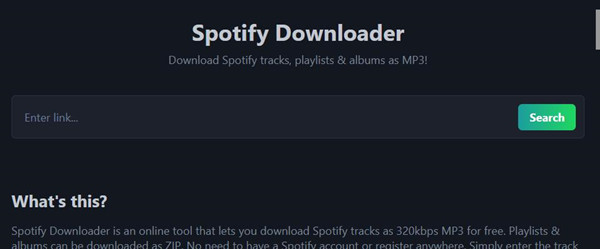
Need MP3 files for offline listening or want to save your favorite Spotify songs without subscribing to Premium? SpotDownloader, now available at SpotiDown, can help.
SpotDownloader, previously known as Spotify-Downloader, is a free online Spotify downloader that converts songs, playlists, and albums into MP3 files. Unlike the official Spotify app, it works directly in a browser, so users can save music without installing extra software.
The tool mainly focuses on converting Spotify links into downloadable audio files. It supports MP3 output at up to 320Kbps and keeps basic music details, including cover art, artist information, album details, and release year, to help users organize their files.
SpotDownloader states that it is an independent service and is not affiliated with, endorsed by, or sponsored by Spotify.
Part 2. SpotDownloader Key Features
SpotDownloader has a few features that make it appealing for quick music downloads. But how well does it really perform compared to tools like ViWizard? Here's a breakdown:
Supportive Contents: Download Songs and Playlists with Ease

SpotDownloader makes it simple to extract MP3 files from any shareable Spotify link. It works with tracks, playlists, and albums, while unsupported links - like artist pages, podcasts, or audiobooks - show an exclamation mark instead of a "√". After pasting the link, you may need to complete a CAPTCHA (Completely Automated Public Turing Test to Tell Computers and Humans Apart) before downloading. Once verified, the site prepares your download so you can choose specific tracks or all at once. It works well for general music downloads, though the process can occasionally be unpredictable.
The tool also offers optional "similar tracks" when downloading an album, though suggestions are not always accurate. For more precise control and consistent results, ViWizard lets you access your full music library directly, drag and drop tracks, maintain the original order, and even download podcasts and audiobooks - making it a more complete solution.
Batch Downloading: A Convenient Way to Download Multiple Songs
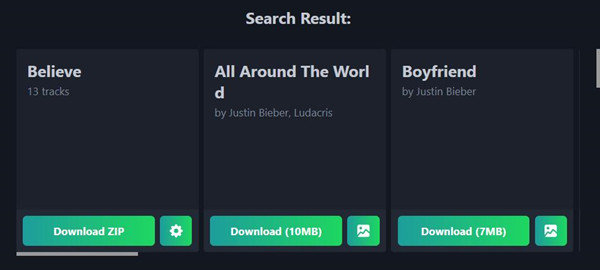
Batch downloading is a major time-saver, and SpotDownloader mostly handles it well. You can download multiple tracks at once, and the MP3s are packaged into ZIP files for easy storage.
However, reliability can be hit-or-miss. Some users receive incomplete downloads - like only 94 out of 100 tracks - with no clear reason. In my test, a playlist of 123 songs ended with an "Error! Resource not found" even after passing the CAPTCHA.
For stable batch downloads with fewer missing tracks, ViWizard offers a near-perfect success rate with no download limits. Failed items can also be retried from your conversion history.
Stability: Relies on Server Performance
SpotDownloader usually delivers solid download speeds, but everything depends on server conditions. When servers are stable, downloads are fast - a 3-minute track (around 4.4 MB) took only 14 seconds in my test. But during peak hours or with slow internet, downloads may lag or fail entirely.
If you need consistent performance at all times, ViWizard is more reliable because it works directly with the original music source instead of relying on external web servers. Download speeds are also much faster, up to 15× speed.
Music Downloads: 192 kbps MP3 with Good Sound
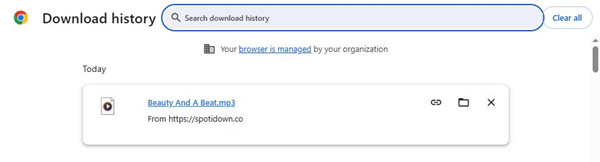
SpotDownloader saves music as MP3s, which are widely compatible. The 192 kbps bitrate is fine for casual listening but not ideal for high-quality audio. The site also doesn't clarify where its audio files come from. Many similar web tools pull audio from alternative sources - often YouTube - so results can vary depending on what the tool matches behind the scenes.
Tools like ViWizard provide higher fidelity, multiple formats, better bitrate control, and even true lossless output - ideal for videos, DJ mixes, ringtones, or users seeking better sound. Beyond MP3, ViWizard supports WAV, M4A, M4B, FLAC, and AIFF, all with accurate results matched to the original source and full metadata for easy organization.
Free Service: Easy to Use, But with Some Limitations
SpotDownloader's free access is appealing, but ads can be distracting, and reliability isn't always guaranteed. Avoid clicking on ads to reduce risk. For a more stable and secure option, paid software like ViWizard offers cleaner operation, better performance, and support for both free and Premium accounts.
Part 3. SpotDownloader Review
After testing SpotDownloader, I found that it offers a simple and straightforward experience. The tool requires no installation or account setup, and the basic download process only involves pasting a link.
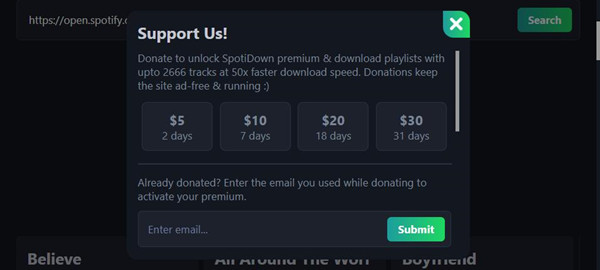
In testing, SpotDownloaderworked well for occasional single-track downloads, but the experience was less consistent when processing multiple tracks. The site has also changed domains from spotdownloader.com to spotidown.co, which raises concerns about long-term availability. Its Premium subscription, offered through donations ranging from $5 for 2 days to $30 for 31 days, also feels expensive considering it mainly promises faster downloads and support for up to 26,666 tracks.
Despite these drawbacks, SpotDownloader remains a popular option for users who want to download a few free MP3 files. Its updated interface makes the overall experience more polished. However, users looking for a more stable and feature-rich solution may prefer dedicated software like ViWizard.
Need Spotify music for offline listening? ViWizard Spotify Music Converter helps Spotify Premium and free users save songs, playlists, albums, podcasts, and audiobooks in popular audio formats with fast, reliable conversion. Start converting and enjoy Spotify music across more devices.
- Fast and easy to use
- No software installation required
- Free access
- Supports songs, albums, and playlists
- Performance can be unpredictable
- Batch downloads may fail or miss tracks
- Audio limited to 192 kbps MP3
- Ads can be distracting
- Source of audio files is unclear
Part 4. How to Use SpotDownloader
SpotDownloader works directly in your browser, so no installation is needed.
Like similar tools such as SpotiDown or SpotiMate, the site is very easy to use, and that's the main benefit of online downloaders like this - it doesn't require any extra steps or setup. A few clicks and you're done. SpotDownloader saves your songs directly to your device in MP3 format. Single tracks are ready to use right away, and albums or playlists are packed neatly into ZIP files. For anyone who wants a fast and simple result, this makes the whole process very convenient.
Step 1Open SpotDownloader
Open your browser and go to the SpotDownloader website. No sign-up or software installation is required.
Step 2Find Music on Spotify
Open Spotify, either the Web Player or app, and find the track, playlist, or album you want to download.
Step 3Copy the Spotify Link
Click the three dots next to the item, then select Share > Copy Song Link or Copy Link to playlist or album.
Step 4Paste the Link into SpotDownloader
Return to SpotDownloader and paste the copied Spotify link into the text box.
Step 5Submit the Link and Verify
Click Search and complete the CAPTCHA verification to confirm you are human.

Step 6Process and Review the Results
Wait for SpotDownloader to process the link and display the available content below the search box. Review the results and ignore any extra suggestions if you only want the selected track, playlist, or album.
Step 7Download the MP3 File
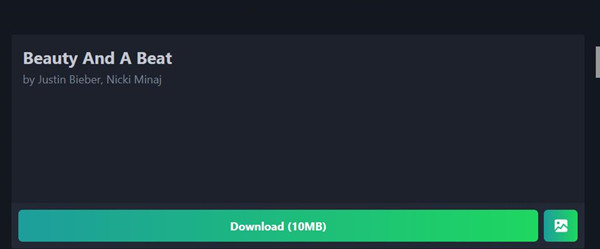
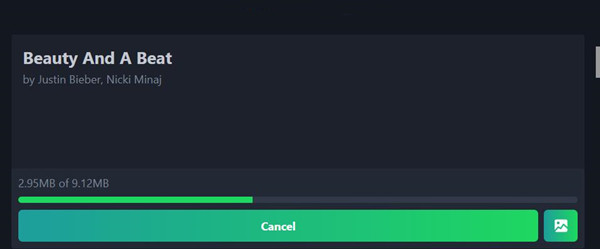
Click Download to prepare the MP3 file, then wait for the download to complete. The time depends on your internet speed and file size.
Step 8Access Your Downloaded Music
Open your Downloads folder or saved file location. Your MP3 file should now be ready for offline playback.
Part 5. Is SpotDownloader Safe and Legal?
Free tools are always attractive, but they do not always mean safe, and there can be hidden costs.
Is SpotDownloader Safe?
SpotDownloader works in a browser and does not require installation, which helps reduce some risks. It also does not require users to create an account or provide login details, reducing the chance of exposing personal information. In addition, it uses SSL (Secure Sockets Layer) to protect data transferred between users and the website.
However, SpotDownloader states that users take responsibility for any actions based on information found on the website and that it is not liable for losses or damages related to website use. Some users have reported scams connected to the site, including one case involving an $84,000 fake investment scheme. Users should be cautious when entering personal information or interacting with external sources.
Is SpotDownloader Legal?
According to its disclaimer, SpotDownloader "does not host or store any user content on our servers." The website claims that it does not store licensed content directly and relies on third-party sources to provide music. It also states that it will remove content upon requests from rightful owners.
However, using SpotDownloader may still raise concerns regarding Spotify's Terms of Use, which restrict unauthorized redistribution of content. Users should consider local laws and limit usage to personal purposes where applicable.
Part 6. The Best Alternative to SpotDownloader
If Spotdownloader isn't cutting it for you, ViWizard Spotify Music Converter is a far more robust alternative that offers much more than basic MP3 downloads. While Spotdownloader provides a simple way to grab individual songs or playlists, ViWizard offers a comprehensive solution for downloading music without a Premium subscription.
ViWizard stands out with its ability to remove Spotify's DRM protection and convert music into various formats like MP3, M4A, WAV, FLAC, and AIFF, even supporting lossless audio. This makes it a perfect option for users who want to listen offline on non-smart devices that don't support the Spotify app, or for anyone needing DRM-free music for personal projects. ViWizard ensures your music is easily accessible and compatible.
Where ViWizard truly excels is in batch downloading. Unlike Spotdownloader, which requires multiple submissions for each task, ViWizard allows you to convert as many tracks as you want all at once. With download speeds up to 15X faster on Windows, it's a huge time-saver for anyone managing large music libraries.
Overall, ViWizard is the ideal choice for anyone serious about downloading Spotify music offline. It's definitely worth trying!
Key Features of ViWizard Spotify Music Converter
Free Trial Free Trial* Security verified. 5, 481,347 people have downloaded it.
- Convert Spotify songs, playlists, albums, podcasts, and audiobooks
- Export Spotify music in 6 formats for different devices and players
- Support Spotify Premium and free accounts for music conversion
- Preserve music metadata when organizing converted collections
- Batch download Spotify playlists and large music libraries
 Step 1: Open ViWizard and Add Your Music
Launch ViWizard Spotify Music Converter on your computer. After logging into your Spotify account, you'll have direct access to Spotify's Web Player within the software, regardless of your subscription type. To add music, click the "Add Music" button in the bottom right when it turns green to add them to the conversion list.
 Step 2: Customize Your Output Settings
Next, tailor the output settings to your preferences. Click the Menu icon at the top-right corner and select Preferences. Under the Convert tab, choose your preferred output format - options include MP3, M4A, WAV, FLAC, AIFF, or M4B. You can also adjust the bitrate and sample rate to fine-tune the audio quality. If you want to download lyrics along with your music, simply check the "Save lyrics" box. Once you're satisfied with your settings, click OK to confirm.
 Step 3: Select Your Music for Conversion
Return to the main interface, where you'll see all your added tracks. Choose which music you want to convert - whether it's individual songs, an entire album, or a full playlist. ViWizard also supports audiobooks and podcasts, depending on your subscription. You can even sort your list by title, artist, or album for easier selection. When you're ready, click Convert to begin the conversion process.
 Step 4: Access Your Converted Music
Once the conversion is complete, head over to the History section within ViWizard to find all your downloaded tracks. You can click the Open Folder icon to navigate directly to the output folder containing your files. Since your music is now DRM-free, you can transfer it to any device for offline listening or play it directly through ViWizard's built-in media player.
Part 7. Is SpotDownloader Worth Trying?
SpotDownloader can be a convenient choice for users looking for a simple browser-based tool to convert Spotify links into MP3 files. It allows users to download songs, albums, and playlists without installing software, but the experience can be inconsistent.
Download performance depends on server conditions, and batch downloads may sometimes fail or miss tracks. Ads may also interrupt the experience, and unclear audio sources can lead to inconsistent results.
Overall, SpotDownloader may be worth trying for users who understand its limitations and only need a quick online downloader. For casual users who want a few tracks, it offers a free and simple solution. However, users looking for a reliable long-term option will find dedicated software like ViWizard to be a more stable and professional alternative.
You May Be Interested





Nick Orin often turns to tech forums to see what apps people are talking about. He likes testing different software, comparing features, and finding out which tools are worth a try.

Leave a Comment (0)